Start with the invoice, not a blank form
Your supplier sends a PDF invoice. You open QuickBooks, create a new bill, and start copying the supplier name, invoice number, date, and amount.
The information is already on the invoice. Why should entering it into your books mean typing it all again?
You can import supplier PDF invoices into QuickBooks Online through its built-in bill upload feature or a connected document-processing tool. The process is to upload the document, review the extracted details, confirm the accounting information, and save the correct transaction. QuickBooks’ native accounts payable automation already supports extracting information from uploaded bills.
ScannerPilot provides another route: upload your documents, review extracted fields and possible duplicates, then sync approved Bills or Expenses with the original files attached.
This guide explains both methods—and the checks that matter before a PDF becomes an accounting entry.
First, Should Your PDF Become a Bill, an Expense, or an Invoice?
Before uploading anything, identify what the document represents.
A supplier may call the document an invoice, but the transaction you create in QuickBooks depends on whether you owe money, have already paid, or are requesting payment from a customer. QuickBooks distinguishes unpaid purchases from purchases paid immediately; its customer invoicing workflow serves a different purpose.
| What the document represents | The relevant QuickBooks transaction |
|---|---|
| A supplier invoice for goods or services you will pay for later | Bill |
| A purchase paid immediately, not already recorded through another transaction | Expense or another appropriate purchase transaction |
| An invoice your business sends to a customer requesting payment | Invoice |
This article focuses on supplier invoices and purchase receipts, not importing customer sales invoices.
Not paid yet
BillRecord the payable. Pay the Bill separately.
Paid at purchase
Match or ExpenseMatch an existing record first. Otherwise choose the appropriate purchase transaction.
You request payment
InvoiceThis is the customer sales workflow, outside this guide.
Method 1: Upload PDF Bills Directly into QuickBooks Online
You do not necessarily need an additional app to get started.
QuickBooks Online accepts PDF bill uploads, along with several image formats. Its accounts payable automation can extract information and place uploaded bills into a review queue.
How to upload a supplier invoice in QuickBooks Online
The following navigation follows Intuit’s U.S. documentation:
- Open your Bills workspace. Go to All apps → Expenses & Bills → Bills.
- Choose the upload option. Open the Add bill dropdown and select Upload from computer.
- Upload your PDF invoices. Drag the files into the upload window or browse your computer.
- Review the uploaded bills. Check the For review tab and verify the extracted information before accepting the records.
Check the vendor, bill number, dates, amount, and accounting category. Complete the review and save the Bill when the details are correct. Recording a Bill and scheduling its payment are separate actions.
Availability can differ between accounts as features roll out, so use the options shown in your own QuickBooks company.
Intuit: enter bills in QuickBooks Online
What about PDF receipts for purchases already paid?
QuickBooks also has a receipt capture workflow.
In the U.S. interface, go to All apps → Accounting → Receipts, then choose Upload from computer. QuickBooks extracts information for review, after which you can create an appropriate transaction or match the receipt to an existing one. Its receipt-upload guidance specifies one receipt per file.
That last step matters: a receipt is not automatically a reason to create another expense. First check whether the purchase is already recorded.
Intuit: upload and review receipts
Why the “Import data” screen is different
Uploading a PDF invoice is not the same as importing a spreadsheet.
QuickBooks’ structured data imports use formats such as CSV, Google Sheets, and Excel. Those workflows expect information arranged in columns, rather than a supplier’s PDF layout. Import options also vary by transaction type and subscription.
For a PDF supplier invoice, begin with a document-capture workflow. Use a spreadsheet import when you already have properly structured transaction data.
Changing a filename from .pdf to .csv does not convert an invoice into an importable spreadsheet.
Method 2: Import PDF Invoices into QuickBooks Online with ScannerPilot
ScannerPilot brings document collection, extraction, review, duplicate checks, and QuickBooks sync into a review-first workflow. It supports supplier invoices becoming Bills and paid purchase receipts becoming Expenses or Purchases.
The process is:
- 01UploadOriginal PDF or image
- 02ExtractPrepare the invoice fields
- 03ReviewCheck details and duplicates
- 04ApproveYour accounting decision
- 05SyncVerify record and attachment
Here is how to approach each stage.
Step 1: Connect the Correct QuickBooks Online Company
Connect your QuickBooks Online company to the appropriate ScannerPilot client workspace. ScannerPilot supports separate QuickBooks connections for client workspaces, which helps accounting teams keep each client’s documents and destination company separate.
Before uploading a batch, confirm the workspace and connected company.
For example, an accountant processing documents for three businesses should check the destination before starting each batch—not after the records have been created.
Treat this as your first review decision: whose books should this document update?
Step 2: Upload the Original PDF Invoices
Upload the supplier PDFs you want to process. ScannerPilot supports PDF and image uploads, and its bulk upload feature places multiple documents into a review queue.
For a manageable first run, use a small group of representative documents: a clear supplier PDF, a scanned invoice, and a paid receipt.
Keep documents easy to identify. A descriptive filename such as Pinebrook-PO1846-September.pdf is more useful during troubleshooting than document-final-2.pdf.
As a working practice, keep unrelated invoices in separate files. When one invoice spans several pages, preserve the complete document rather than uploading only the page with the total.
Step 3: Review the Extracted Invoice Data
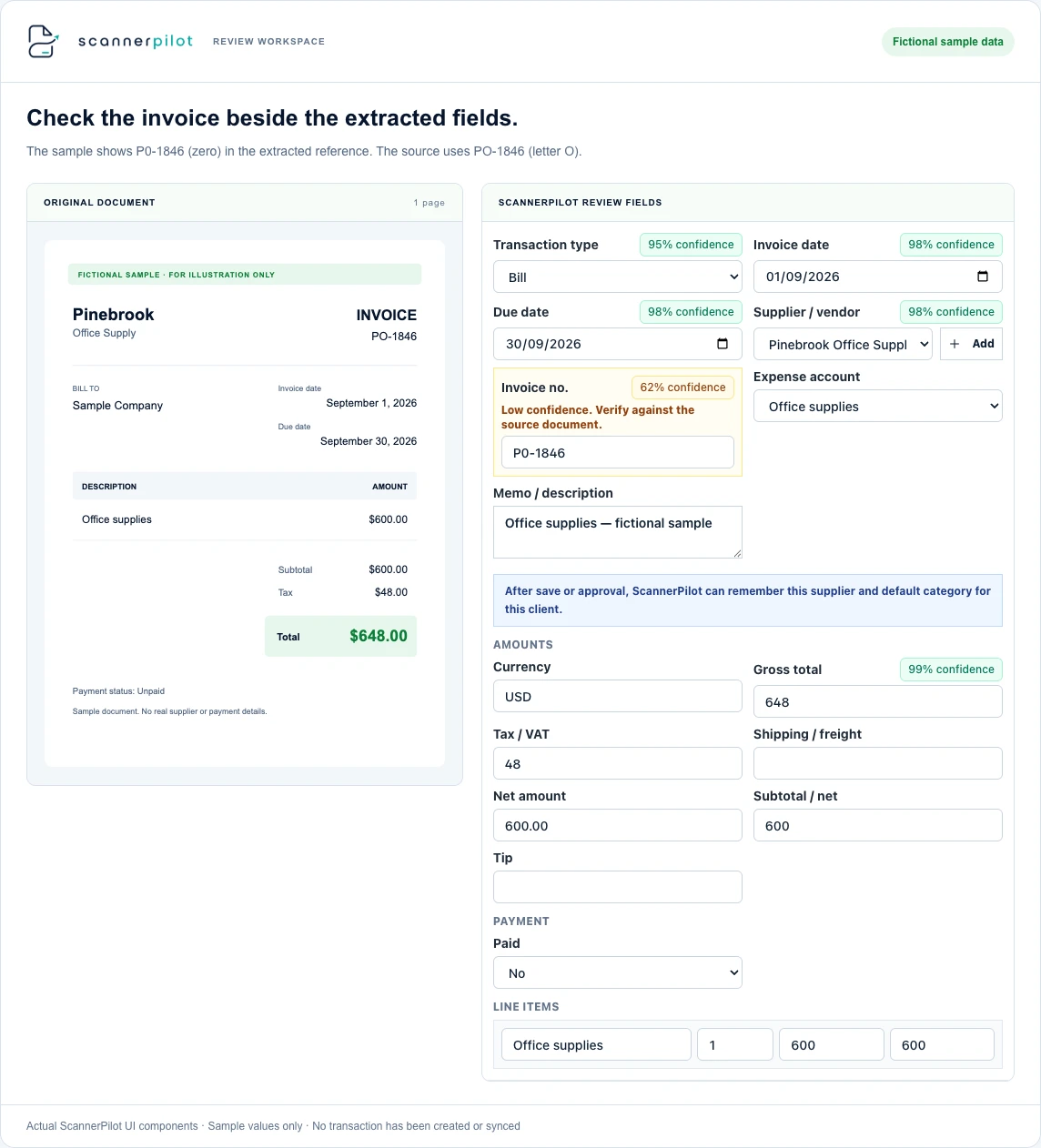
ScannerPilot’s invoice OCR extracts fields including the vendor, invoice number, dates, tax, total, and line items from supplier bills. The extracted information is prepared for review rather than treated as automatically correct.
OCR, or optical character recognition, reads text from images and scanned documents. This is what makes a scanned PDF usable as more than a picture of an invoice.
However, reading the text is only part of the task.
A total can be read correctly while the wrong date is selected. A supplier name can be recognizable without matching the vendor record you use in QuickBooks.
ScannerPilot’s review workspace presents the source document alongside fields, confidence states, and warnings so these decisions remain visible before approval.
Use the following review checklist:
| Check | What to compare with the original invoice |
|---|---|
| Supplier | Is this the business that issued the invoice? |
| Invoice number | Are the letters, digits, prefixes, and leading zeros correct? |
| Invoice date | Is this the issue date rather than a delivery or payment date? |
| Due date | Does it agree with the invoice’s stated payment terms? |
| Total | Is it the final invoice amount rather than a subtotal or previous balance? |
| Tax and additional charges | Have you accounted for the amounts shown without counting them twice? |
Without retyping does not mean without reviewing. The goal is to check prepared information instead of entering every field from a blank form.
Step 4: Resolve Possible Duplicate Invoices
Before creating another transaction, check whether the invoice has already been processed.
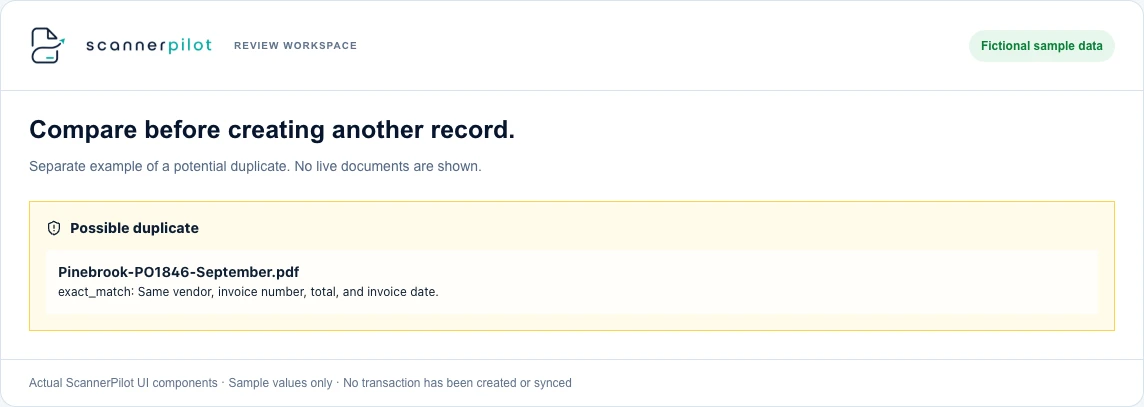
ScannerPilot’s documented duplicate checks use the vendor, invoice number, invoice date, total amount, and file checksum—the file’s digital fingerprint. It flags exact or likely duplicates for review.
Consider a simple example: a supplier emails an invoice, then an employee uploads a photograph of the same document. The files are different, but they may represent one purchase.
The opposite can happen, too. Two invoices from the same supplier can have identical totals and still be legitimate separate purchases.
Use a warning as a reason to investigate, not as an automatic verdict. Compare the source documents and existing records before deciding whether to proceed. ScannerPilot’s duplicate workflow is designed to surface likely matches before approval and sync.
Step 5: Confirm the Accounting Details and Approve
Next, confirm the destination transaction and its mappings.
ScannerPilot makes the transaction type, vendor mapping, sync status, and attachments visible as part of its QuickBooks integration.
Ask three questions:
Is the transaction type correct? An unpaid supplier invoice and an immediately paid purchase should not be handled interchangeably.
Is the vendor correct? A recognizable supplier name is not enough; check that the selected record is the one your books should use.
Is the accounting category appropriate? Extracting words such as “equipment,” “materials,” or “subscription” does not replace deciding how that purchase belongs in your accounts.
QuickBooks’ Bill form includes vendor, dates, bill number, category or item details, amount, and applicable tax. Use the document and your accounting setup to verify the necessary information.
Approve the document after resolving the required fields and warnings. ScannerPilot’s human approval gate keeps that final decision with the reviewer.
Step 6: Confirm the QuickBooks Record and Original Attachment
After syncing, verify the result in QuickBooks Online.
ScannerPilot supports creating the approved Bill or Expense and attaching the original PDF or image. It also exposes attachment status and supports retrying failed attachments.
Check two separate outcomes:
The accounting record exists. Open the transaction and compare its identifying details and amount with the approved document.
The supporting document is attached. Open the attachment and confirm it is the correct source file.
When the transaction exists but its attachment has failed, address the attachment issue rather than creating the transaction again.
The job is complete when the correct record and its supporting document are together—not simply when the upload finishes.
A Worked Example: From Supplier PDF to Reviewed QuickBooks Bill
The following example is fictional and illustrates the review process.
Suppose your business receives a PDF from Pinebrook Office Supply showing:
| Invoice detail | Value |
|---|---|
| Invoice number | PO-1846 |
| Invoice date | September 1, 2026 |
| Due date | September 30, 2026 |
| Total | $648.00 |
| Payment status | Unpaid |
You upload the document to the correct client workspace and inspect the extracted information.
During review, you notice that the invoice number appears as P0-1846, with a zero where the supplier used the letter O. You compare it with the PDF and correct the value.
Next, you check whether PO-1846 already exists in the supplier’s records. Finding no existing entry, you verify the vendor, confirm the accounting category, and approve it as a Bill.
After syncing, you open QuickBooks and confirm that the Bill shows PO-1846, the correct dates, and $648.00. You also open the attached PDF.
You have not eliminated judgment. You have changed where the effort goes: from copying every field to checking the details that determine whether the entry is right.
P0-1846Zero needs checkingPO-1846Letter O confirmed- Invoice number
- PO-1846
- Invoice date
- Sep 1, 2026
- Due date
- Sep 30, 2026
- Total
- $648.00
Do You Need Native QuickBooks Capture or a Separate Invoice Scanner?
Start by testing the workflow already available in your QuickBooks account. Native bill upload and receipt capture both provide ways to bring documents into a review process.
Evaluate a separate tool when your requirement extends beyond getting a file into QuickBooks—for example, organizing client document queues, reviewing batches before sync, or keeping duplicate decisions and sync history together. Those are documented parts of ScannerPilot’s workflow.
Dext also offers document capture and QuickBooks integration, so these capabilities should not be assumed to be unique to one provider.
A useful comparison starts with your documents, not a feature-count contest.
Try the same representative invoices in each workflow. Compare how much correction is needed, how clearly exceptions are shown, and how easily you can verify the final QuickBooks record and attachment.
Choose the workflow that makes correct processing easier to repeat.
Common PDF Invoice Import Problems—and What to Check
Use this troubleshooting checklist before repeatedly uploading the same document. The checks below combine the documented upload and review workflows with practical verification steps.
| What you notice | What to check next |
|---|---|
| The PDF will not upload | Confirm the file opens normally and meets the upload requirements shown in your account. |
| A value is missing or incorrect | Compare it with the original document. Check for cropped, faint, or unclear content before approving. |
| The supplier does not map cleanly | Inspect the selected QuickBooks vendor rather than creating a new vendor immediately. |
| A duplicate warning appears | Compare invoice references and source files with existing records before creating another entry. |
| The Bill exists, but the PDF is missing | Check attachment status and resolve that separately from transaction creation. |
For unclear documents, request a better source file when necessary. QuickBooks’ receipt guidance also notes that dark or blurry images can affect document processing.
A few minutes spent resolving an exception is preferable to making an uncertain record look complete.
Frequently Asked Questions
Can I import PDF invoices directly into QuickBooks Online?
Yes, for supplier bills. QuickBooks Online supports uploading PDF bill files through its Bills workspace. Uploaded documents can be reviewed before they are accepted into your books. This is different from importing customer sales invoices through a structured data workflow.
Do I need to convert PDF invoices to Excel first?
No, not when using a supported document-capture workflow. QuickBooks bill upload accepts PDFs directly. Spreadsheet imports are a separate option for information already organized into supported columns and file formats.
Can I scan paper invoices into QuickBooks Online?
Yes. QuickBooks accepts supported image formats as well as PDFs for bill uploads. ScannerPilot also supports invoice image capture and OCR. Use a complete, readable scan and review the extracted information before creating the transaction.
Can I upload multiple PDF invoices?
QuickBooks’ bill-upload instructions support selecting or dragging files into the upload window, and ScannerPilot documents a bulk upload queue. Check your account’s current requirements rather than assuming unlimited batch sizes.
Does importing a supplier invoice automatically pay it?
Creating or saving a Bill records what you owe; it is not the same as paying the supplier. QuickBooks provides separate options to schedule payment or save a Bill for payment later. Review the action you are approving.
Will invoice OCR remove every manual correction?
Do not assume every extracted field is correct. ScannerPilot provides confidence states and a review stage before approval. Use those controls to check uncertain values and confirm accounting decisions, rather than treating OCR output as a finished bookkeeping record.
Start with the Invoice, Not a Blank Form
The next supplier PDF does not have to become another round of copy-and-paste bookkeeping.
ScannerPilot helps you extract the information, review it beside the original document, check possible duplicates, and send approved records to QuickBooks Online with the source attached.
Start with one invoice. Follow it all the way through to the QuickBooks record and its attachment. Then use the same checks for your next batch.
Your invoice already contains the details. Make reviewing them the job—not typing them again.
Explore how to scan invoices into QuickBooks Online, see the review workspace, or learn how duplicate invoice checks fit into the process.
QuickBooks navigation follows Intuit’s U.S. documentation, checked September 19, 2026. Features and menus can vary by region, plan, and rollout.
- Intuit: enter bills in QuickBooks Online
- Intuit: upload and review receipts
- Intuit: bills, checks, and expenses
- Intuit: supported structured data imports
- Dext: QuickBooks Online connection
The Pinebrook example is fictional. Product previews use sample data; they do not document a live QuickBooks test.