

Get the receipt to the right record
The materials reach the job site. Does the receipt reach your bookkeeper?
A crew member buys supplies for two projects. The supplier emails an invoice to the office. Someone photographs the paper copy. Later, unused materials go back, and a credit arrives.
Now the office needs to establish what was purchased, which jobs received it, whether it was already paid, and what changed after the return.
Scanning the paperwork is only the beginning.
To manage construction receipts and supplier invoices, capture the complete document, add the job and payment details, check for existing records, and review the accounting entry before recording it. Then confirm that the purchase is assigned correctly and its supporting document is accessible.
The goal is not simply to record how much the business spent.
It is to make each purchase understandable: what it was for, which job it belongs to, and what still needs attention.
This guide focuses on supplier invoices, materials receipts, and equipment-hire documents for contractors using QuickBooks Online—not the entire construction accounting process.
Why Construction Receipt Management Needs More Than a Supplier and Total
Consider a contractor buying materials from the same supplier for three active projects.
The supplier name tells the bookkeeper where the purchase came from. It does not identify which project used the materials.
These are separate decisions. QuickBooks’ project guidance distinguishes the payee on an expense from the project assigned to each expense line. A transaction can therefore identify the correct supplier while still needing its project allocation completed.
Intuit: add existing expense line items to projects
Build your process around three questions:
What was purchased? Identify the materials, equipment hire, or service.
Where does it belong? Confirm the job, multiple-job split, or another appropriate destination.
How was it paid? Establish whether it is unpaid, paid by the business, or paid personally and awaiting review.
Do not expect the bookkeeper to reconstruct those answers from a supplier logo and a bank transaction.
A readable receipt can still be an incomplete handoff.
What Your Crew Should Send with Every Receipt
Use a short submission checklist rather than asking site staff to make accounting decisions.
The following is a suggested handoff standard. These are information requirements for your process, not a claim that every field is automatically extracted or supported by ScannerPilot.
| Information | What the submitter should provide |
|---|---|
| Complete document | A readable receipt or original supplier PDF, including all relevant pages. |
| Job reference | The agreed project code and a recognizable job name. |
| Purpose of purchase | A brief description, such as “plumbing fittings for upstairs bathroom.” |
| Payment details | Whether the business paid, a worker paid personally, or the supplier still needs payment. Use an account label—not a full card number. |
| Delivery or hire details | The receiving site, relevant delivery reference, or equipment-hire period when needed. |
| Exceptions | Items for another project, missing goods, returns, disputed charges, or a replacement document. |
A useful submission note might read:
Job: RS-014 — Riverside Bathroom
Purchase: Plumbing fittings and wallboard
Paid with: Business card ending 1842
Allocation: All items for RS-014
Exception: One damaged pack awaiting supplier response
Keep the note alongside the document in the approved submission process. Do not rely on a separate message that the reviewer may never see.
For unfamiliar purchases, ask the crew for the facts. Let the responsible bookkeeper decide the accounting treatment.
Use a consistent routine to organize business receipts, then add the job and payment context your office needs.
A Six-Step Workflow for Construction Receipts and Supplier Invoices
1. Capture the Source Before It Gets Separated from the Purchase
Choose one approved destination for each accounting business.
Ask field staff to photograph complete paper receipts when the purchase occurs or at an agreed daily checkpoint. Ask suppliers to send original invoice PDFs through the agreed office channel.
Check that the file arrived successfully. A photograph left in someone’s camera roll has not completed the handoff.
For equipment hire, retain the documents needed to identify the equipment, rental period, and relevant collection or return details. For materials deliveries, keep the supporting delivery information associated with the supplier invoice.
Do not create a different submission process for every site unless there is a clear operational reason. Use job references to distinguish projects within the correct business.
2. Identify the Document Before Creating a Transaction
Do not send every supplier document through a “create Bill” action.
A purchase order describes what the business intends to buy. It is not the same document as the supplier’s invoice. Intuit’s procurement guidance treats purchase orders as part of the purchasing process leading toward receipt and payment.
Intuit: purchase orders and the procurement process
Use a simple review policy:
Purchase orders and delivery tickets: Keep them available for checking what was ordered and received.
Supplier invoices and paid receipts: Determine whether they require a new accounting entry or support one already recorded.
Supplier statements: Compare them with individual invoices, credits, and payments. Do not automatically record the entire statement balance as another purchase.
Credit notes and refund documents: Route them for review against the original purchase rather than treating them as new charges.
The number of documents is not necessarily the number of transactions.
3. Review Extracted Information and Possible Duplicates
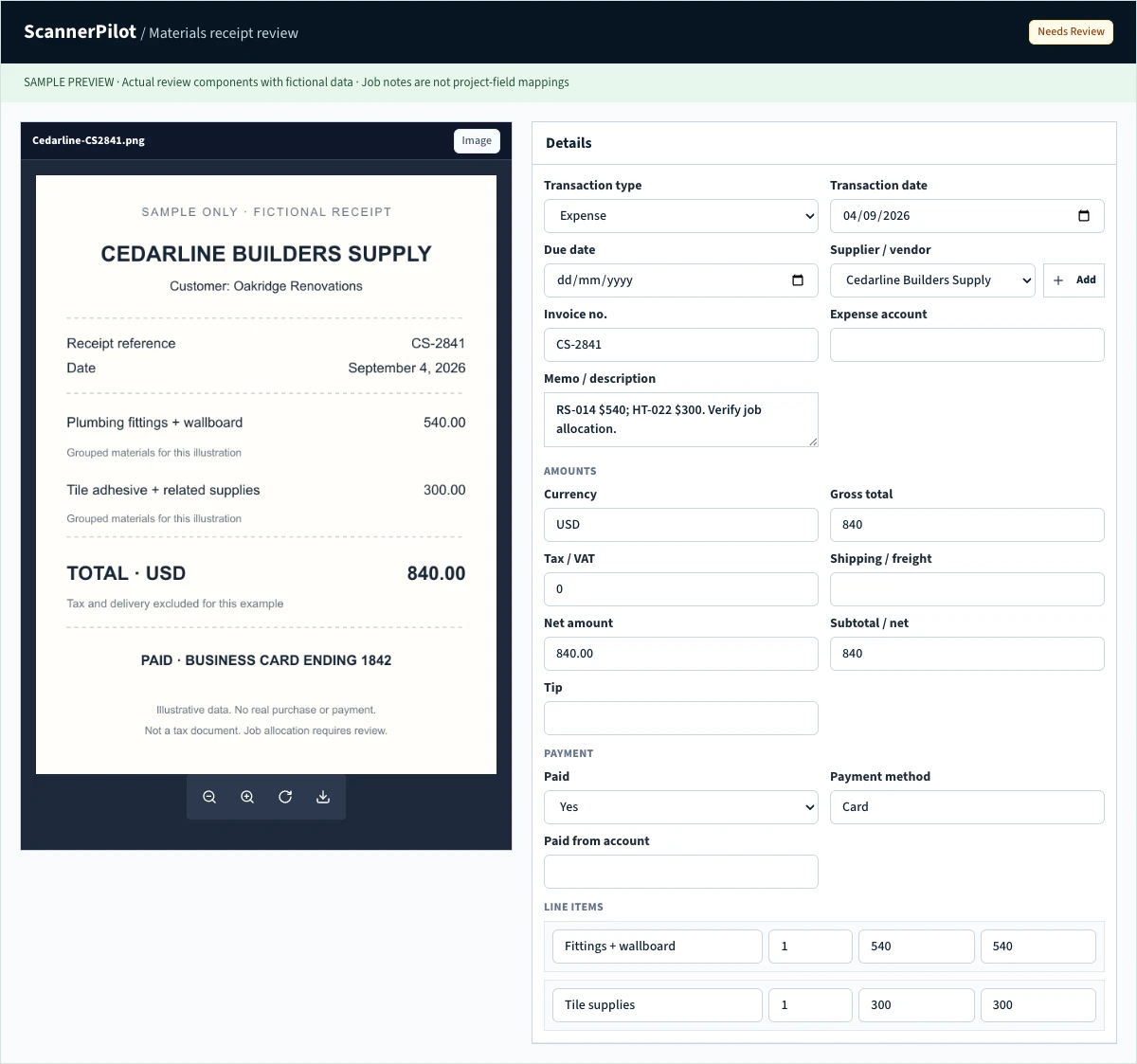
Invoice capture software can prepare information that someone would otherwise type manually. ScannerPilot’s published capture workflow extracts supplier details, invoice references, dates, tax, totals, and line items for review before approval.
ScannerPilot: receipt and invoice capture
Compare the prepared values with the source.
For construction purchases, pay particular attention to the invoice reference, quantities, additional charges, and service or hire period. An accurately read total does not establish that the supplier charged for the correct delivery.
Check repeated submissions, too.
ScannerPilot documents duplicate checks using the vendor, invoice number, invoice date, total, and file checksum. These help flag possible repeats before QuickBooks transactions are created.
ScannerPilot: duplicate detection
A PDF from the supplier and a photograph from the site may represent the same purchase. Conversely, two hire invoices with identical amounts may cover different periods.
Investigate the documents—not just the warning.
Build duplicate invoice detection into the review before recording another supplier purchase.
4. Confirm Whether the Purchase Is Unpaid, Paid, or Already Recorded
QuickBooks distinguishes a Bill for a purchase payable later from an Expense or Check for a purchase paid immediately. When a Bill already exists, its payment should follow the bill-payment workflow rather than creating a separate Expense that leaves the Bill outstanding.
Intuit: differences between bills, checks, and expenses
Make this an explicit review question:
“Are we recording a new purchase, or adding evidence about a purchase already in the books?”
For personally paid purchases, identify who paid and pass the reimbursement details to the bookkeeper. Do not select a business payment account that was not used.
When a bank transaction also arrives, check for an existing record before adding another purchase. QuickBooks receipt review supports creating a transaction or matching the document to an existing one.
Intuit: upload and review receipts in QuickBooks
One materials purchase should not become separate expenses simply because the receipt and bank transaction arrived through different channels.
5. Assign the Purchase to the Correct Job
Use a consistent project reference throughout the handoff and bookkeeping process.
For example, choose RS-014 — Riverside Bathroom rather than alternating between “Riverside,” “Bathroom job,” and the homeowner’s surname.
When one purchase covers several jobs, establish the allocation before marking the review complete. QuickBooks allows expense line items to be assigned individually to projects, provided the relevant project setup is in place.
Intuit: add existing expense line items to projects
Do not duplicate the whole transaction to make it appear against two jobs. Split the relevant amounts within the appropriate accounting workflow and confirm that the allocations reconcile to the original purchase.
Also distinguish tracking a cost against a project from charging that cost separately to the customer. Intuit’s guidance treats customer billing differently for time-and-materials and fixed-fee arrangements. Do not mark every project purchase billable by default.
Intuit: invoice customers for project expenses
Where the destination is uncertain, flag it for review rather than assigning it to whichever project is easiest to select.
6. Verify the Record, Project Allocation, and Attachment
After recording or syncing the document, inspect the result.
Confirm the supplier, reference, amount, transaction type, and project allocation. Then open the supporting file and check that it is the correct, complete document.
ScannerPilot supports approved QuickBooks Bills or Expenses with the original PDF or image attached. Its features also distinguish attachment status and provide attachment retries.
ScannerPilot: the QuickBooks Online workflow
Keep those completion checks separate.
A missing attachment is not proof that the transaction failed. Investigate before repeating an action that could create another Bill.
For your construction bookkeeping process, define completion as:
Worked Example: One Receipt, Two Jobs, and a Materials Return
The following example is fictional. It illustrates a review process, not a customer result or measured ScannerPilot performance.
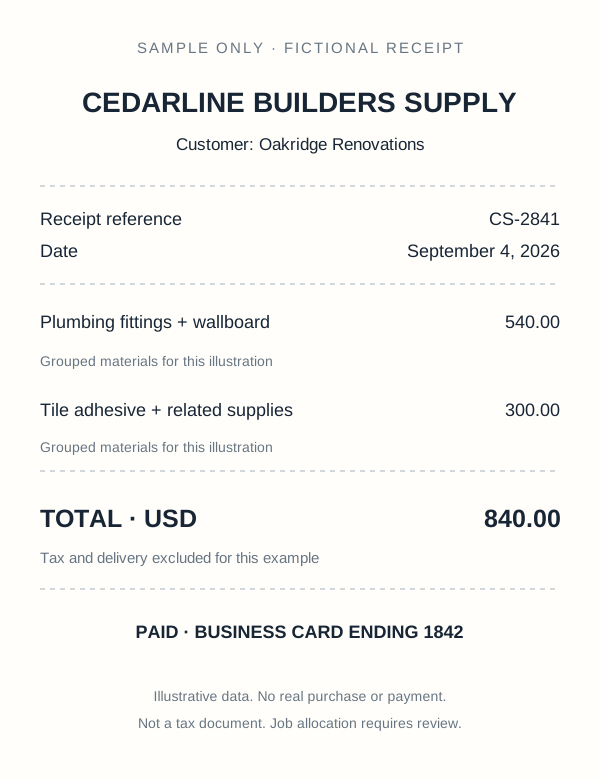
Oakridge Renovations purchases $840 of materials using a business card. The receipt contains items for two projects.
For simplicity, the example excludes tax, delivery charges, and inventory-treatment questions.
| Purchased items | Project | Allocated amount |
|---|---|---|
| Plumbing fittings and wallboard | RS-014 — Riverside Bathroom | $540 |
| Tile adhesive and related supplies | HT-022 — Hilltop Kitchen | $300 |
| Original purchase | Two project allocations | $840 |
The crew member supplies the receipt and identifies which items went to each job.
The bookkeeper checks that the purchase is not already recorded, verifies the allocation, and keeps the receipt with the accounting transaction.
The supplier later emails a copy of the same receipt. The reviewer identifies it as another submission of the original purchase—not another $840 expense.
A week later, unused materials from HT-022 are returned, and the supplier refunds $60.
The return is reviewed separately. After it is recorded appropriately, the illustrated net allocation becomes $540 for RS-014 and $240 for HT-022, totaling $780.
The result is one original purchase, two job allocations, and one separately handled return.
Recording the receipt correctly was not enough. The allocation and subsequent return mattered, too.
- Business
- Oakridge Renovations
- RS-014 · Riverside Bathroom
- Fittings + wallboard · $540
- HT-022 · Hilltop Kitchen
- Tile supplies · $300
- Payment
- Business card ending 1842
- Next check
- Check for an existing entry and verify both job allocations.
Construction Document Exceptions That Need a Separate Check
Returned Materials and Supplier Credits
Keep the original purchase document and the return or credit documentation connected.
Do not simply replace the original invoice total with a smaller amount without establishing how the adjustment should be recorded.
QuickBooks’ vendor-refund guidance provides different workflows depending on how the original purchase was entered. It also identifies project tracking for relevant refunds so project costs are not overstated. Have the bookkeeper choose the appropriate route.
Intuit: enter vendor credits and refunds
Add a weekly check for returns that have been reported but do not yet have a confirmed supplier credit or refund.
Assign an owner and follow up for the supplier credit or refund evidence.
New evidence → return reviewThe bookkeeper selects the route for the original transaction and checks the affected job.
Verify record, allocation, and evidenceEquipment-Hire Invoices
Review more than the final amount.
Check the equipment reference, hire dates, agreed rate, and supporting collection or return information. Where an invoice includes deposits, damage charges, or an extended hire period, route those items for clarification.
Do not assume that the site receiving the invoice is necessarily the site that used the equipment for the entire period.
For equipment moving between jobs, obtain the allocation evidence your bookkeeper needs rather than guessing from the supplier’s address line.
Subcontractor Invoices and Staged Work
Keep the work description, job reference, billing period, and relevant approval evidence available with the invoice.
Ask the responsible site or project contact to confirm what has been supplied or completed under your agreed process.
Document extraction should not be treated as confirmation that the work was accepted or the payment was authorized.
Contract-specific approvals and specialist construction accounting remain separate from scanning the invoice.
Shared Purchases and General Stock
Do not force every purchase onto an active job just to clear the review queue.
For materials held for later use, shared supplies, or purchases covering several projects, ask the responsible reviewer to determine the appropriate treatment.
A useful unresolved note is specific:
“Receipt contains supplies for RS-014, HT-022, and general stock. Awaiting item allocation from the purchaser.”
That is more useful than silently assigning everything to one project.
What QuickBooks Can Handle Without Another Receipt App
QuickBooks Online already provides receipt capture through supported upload methods, including its mobile app. Users can review extracted information and create or match transactions. Its receipt guidance specifies one receipt per file.
Intuit: upload and review receipts in QuickBooks
It also supports uploading supplier bill PDFs and supported image files for review.
Intuit: enter and upload bills in QuickBooks Online
Start by testing the features available in your account.
Process a representative site purchase from submission through to its final accounting record. Check whether the crew can submit it, whether the bookkeeper has enough context, and whether the project allocation is visible afterward.
Do not buy another application solely to recreate a feature you already have.
Consider a dedicated tool when it improves a specific part of the handoff—such as preparing a batch of invoices for review, identifying repeated submissions, or keeping incomplete documents visible.
Where ScannerPilot Fits in Construction Receipt Management
ScannerPilot provides a focused document intake and review stage before supplier records reach QuickBooks Online. Its bookkeeper workflow includes client queues, bulk uploads, exception review, approval, and source attachments.
ScannerPilot: document workflows for bookkeepers
For a contractor, use that stage to prepare and check the receipt or invoice. Keep job allocation as an explicit requirement in the wider accounting workflow.
Line-item extraction and construction job allocation are separate capabilities. Confirm any required project-field mapping or split allocation before relying on it. A client workspace should not be mistaken for a construction-project mapping.
Where a required mapping is not available, complete and verify it in the appropriate QuickBooks workflow. Intuit documents adding existing expense line items to projects.
Intuit: add existing expense line items to projects
The product’s role is to help with the document work—not to replace every construction-accounting decision.
For the broader document workflow, see automated invoice processing. Keep construction-specific allocation and approval requirements visible at each handoff.
What to Test in Receipt Software for Contractors
Evaluate the complete site-to-office process, not just OCR.
Dext’s published construction customer story describes field submissions, supplier invoices arriving through email, and job descriptions accompanying paperwork. It illustrates why the handoff deserves attention alongside extraction. It is a provider-published customer example, not an independent comparison with ScannerPilot.
Dext: provider-published Northwest Construction Cooperative story
Use a controlled test containing a clear receipt, a supplier PDF, a repeated submission, a two-job purchase, and a return document.
Ask three questions:
Can the crew submit enough context? Check whether the job and purchase explanation remain available to the reviewer.
Can the office resolve exceptions? Test unclear references, disputed quantities, duplicates, and missing allocations.
Does the final accounting record reflect the decision? Inspect the transaction, project assignment, and source file.
Confirm permissions and the actual integration fields. Do not assume that “QuickBooks integration” means every project, class, location, or construction cost code will transfer.
Use a test company or controlled procedure so evaluation does not create unwanted entries in live books.
A Weekly Construction Bookkeeping Checklist
Use the following as a suggested operating routine, adjusted to your document volume and reporting deadlines.
| Responsible person | Weekly check |
|---|---|
| Crew member or purchaser | Submit missing receipts and identify the job, payment method, and unusual items. |
| Site or project contact | Resolve delivery questions, hire periods, shared purchases, and reported returns. |
| Bookkeeper | Check existing records, duplicates, transaction types, job allocations, credits, and attachments. |
| Owner or finance lead | Review unresolved items and decide who will address each one before relying on the relevant reports. |
Keep one visible list of unfinished questions.
Do not measure progress only by the number of uploaded files. Track whether the documents are usable and the accounting decisions are complete.
For a pilot, record the number of items needing job clarification and how long those questions remain unanswered. Those observations can reveal whether the main delay is document capture, field information, or office review.
Frequently Asked Questions
What Is the Best Way to Organize Construction Receipts?
Use one approved submission process for each business, include a consistent job reference, and keep payment details and purchase context with the source document.
Separate completed records from items still awaiting delivery confirmation, allocation, or another answer.
Can One Receipt Be Split Between Two Construction Jobs?
Yes, when the accounting workflow supports the required allocation. QuickBooks documents assigning expense line items individually to projects. Check that the allocated amounts reconcile to the original transaction and do not create a full duplicate expense for each job.
Does Assigning an Expense to a Project Mean the Customer Should Be Billed for It?
Not automatically. Project-cost tracking and customer billing are different decisions. Intuit’s guidance distinguishes billing specific expenses under time-and-materials arrangements from typical fixed-fee invoicing. Apply the contract and your billing policy rather than marking every cost billable.
How Should a Contractor Handle Returned Materials?
Keep the return evidence with the original purchase and confirm whether the supplier issued a credit or an actual refund. Ask the bookkeeper to use the workflow appropriate to the original transaction and review the affected project allocation.
Can I Photograph Receipts with My Phone?
Yes. QuickBooks Online’s mobile app supports receipt photography and subsequent review. Confirm that the image is complete, readable, and submitted to the intended company—not merely saved on the device.
Does ScannerPilot Replace Construction Accounting Software?
Its documented focus is supplier-document intake, extraction, review, and approved QuickBooks records with attachments. Evaluate broader requirements—such as project allocation, payroll, contract-specific approvals, and specialist reporting—separately.
Get the Paperwork to the Right Job—not Just into the System
Construction receipt management works best when the field team and office each know their part.
The crew supplies the document and purchase context. The reviewer checks what it represents. The bookkeeper confirms the transaction and job allocation. The supporting file stays accessible.
Start with one active project and a manageable batch of receipts. Include a shared purchase and a return so the process is tested beyond straightforward invoices.
ScannerPilot supports the document-review stage through invoice and receipt preparation, approval, and QuickBooks records with the original files attached.
The materials reached the job site. Make sure the paperwork reaches the right record.
Published by ScannerPilot. Intuit and Dext primary sources were checked on September 20, 2026. QuickBooks references describe the U.S. product; project features, navigation, and supported workflows vary by subscription, configuration, country, and rollout. Confirm the project setup and actual integration fields before relying on a split allocation.
- Intuit: add existing expense line items to projects
- Intuit: invoice customers for project expenses
- Intuit: purchase orders and the procurement process
- Intuit: differences between bills, checks, and expenses
- Intuit: upload and review receipts in QuickBooks
- Intuit: enter and upload bills in QuickBooks Online
- Intuit: enter vendor credits and refunds
- Dext: provider-published Northwest Construction Cooperative story
- ScannerPilot: receipt and invoice capture
- ScannerPilot: duplicate detection
- ScannerPilot: document workflows for bookkeepers
- ScannerPilot: the QuickBooks Online workflow
Oakridge Renovations, Cedarline Builders Supply, the materials receipt, and the $840 / $60 example are fictional. The example excludes tax, delivery charges, and inventory-treatment questions and is not a customer result or product benchmark. The screenshot captures actual review components with sample data, not live extraction or QuickBooks sync; memo job references do not demonstrate project mapping. Dext’s customer story is provider-published, describes its own customer workflow including Xero, and is not an independent ScannerPilot comparison. Crew handoff fields are process suggestions, not a promise that every field is extracted or mapped.