

A receipt system you can use every week
A receipt in your wallet. A supplier PDF in your inbox. A purchase confirmation saved on your phone.
You have kept the documents. But when your bookkeeper asks about a particular expense, you still have to search for them.
The problem is not always missing receipts. Sometimes, it is missing a system.
To organize business receipts, choose one digital inbox, capture complete documents, add the business context, and review them on a regular schedule. Then connect each receipt to the appropriate accounting record and keep unfinished items separate from completed ones.
You do not need to begin with a complicated spreadsheet or dozens of folders.
You need a clear answer to three questions:
Where does this receipt go? What still needs checking? Has the purchase already been recorded?
This guide gives you a practical receipt organization system for answering those questions—and keeping the next month from becoming another catch-up exercise.
What Does an Organized Business Receipt Look Like?
An organized receipt is more than a readable image.
For your workflow, aim to keep three things together: the original document, the reason for the purchase, and its accounting status.
Consider the difference.
Saved: A photograph named IMG_2841.jpg somewhere in a phone gallery.
Organized: A readable receipt from the correct supplier, with a note explaining the business purchase and a clear indication of whether it has been recorded.
That is the standard to work toward.
Supporting documents matter because they help substantiate entries in your books. For U.S. businesses, the IRS identifies receipts, invoices, paid bills, and other documents as supporting records and recommends keeping them orderly and safe. It also notes that several documents may be needed to substantiate an expense fully.
IRS: What kind of records should I keep?
Your filing system should help someone understand the purchase—not merely prove that a file exists.
How to Organize Business Receipts in Six Steps
1. Choose One Digital Inbox for Each Business
Start with one agreed destination for incoming receipts.
That could be a receipt-management workspace, your accounting software’s receipt queue, or a restricted-access folder while you establish the process.
The important rule is consistency.
Do not make your bookkeeper guess whether this week’s receipts are in email, a messaging app, a shared folder, or someone’s camera roll.
For businesses with several people making purchases, use the same submission instructions. For separate businesses, keep separate destinations.
Your instruction can be as simple as:
A digital inbox does not mean every document must arrive through the same channel. Paper receipts and emailed PDFs can start in different places. They should finish in the same review process.
Make the destination obvious before worrying about the software.
2. Capture the Complete Receipt While You Have It
For paper receipts, take a clear photograph or scan before putting the original into storage.
Check the image immediately. Include the merchant, date, purchased items, and final amount. Avoid glare, folded sections, and cropping that removes important details.
Do not photograph several unrelated receipts as one image. Keep each purchase identifiable.
For an emailed receipt, save the original attachment when available. For a supplier portal, download the actual receipt or invoice rather than relying only on an order-confirmation screen.
A useful capture check is:
“Could someone who was not there understand the purchase from this document?”
Capture convenience is also something to evaluate when choosing software. Dext, for example, supports mobile, email, and web submission. Those are options for getting documents into a system—not a reason to skip checking what was submitted.
When comparing receipt-management software, test how easily your team can submit a complete document and review it in the right workspace.
Choose the method your team will use consistently.
3. Add the Business Context Before You Forget It
A receipt tells you what the seller printed. Your bookkeeping process may need more context.
Add a short note while the purchase is still familiar.
The following is a practical submission template, not a universal tax-documentation checklist:
| Detail | What to provide |
|---|---|
| Business purpose | A plain-language explanation of why the purchase was made. |
| Business, client, or project | The destination the cost relates to, when relevant. |
| Who paid | The business, an employee, or the owner. |
| Payment account | A recognizable account label, not a full card number. |
| Anything unusual | Personal items, refunds, split payments, or an amount needing clarification. |
For example, “Materials for the Riverside installation, paid using the business card” is more informative than “Supplies.”
Do not invent missing information or make an accounting decision you are unsure about. Flag the question instead.
An employee purchase that needs reimbursement should remain distinguishable from a purchase paid directly by the business. Give your bookkeeper the facts needed to handle it appropriately.
4. Separate New, Unclear, and Completed Receipts
Use three simple statuses:
| Status | What it means | Next action |
|---|---|---|
| Inbox | The document has arrived but has not been checked. | Review the receipt and its context. |
| Needs Details | Something prevents completion. | Resolve the specific question. |
| Recorded | The accounting treatment has been checked and the document is connected to the intended record. | Retain it according to your records policy. |
The distinction prevents a common organizational mistake: treating everything in the same folder as equally finished.
For a receipt in Needs Details, write down the actual question.
“Which project was this for?” is actionable. “Check later” is not.
Assign someone to resolve it. An exception without an owner is simply another way to lose track of the receipt.
Write the exact question and name the person responsible.
Identify the original and follow your document policy.
The intended entry is checked and its receipt can be retrieved.
5. Check Existing Records Before Creating Another Expense
Before recording a receipt, establish whether the purchase is already in your books.
Be particularly careful when a supplier invoice was entered earlier and a payment receipt arrives later.
QuickBooks distinguishes a Bill for a purchase payable later from an Expense or Check for a purchase paid immediately. When paying an existing Bill, Intuit directs users to the bill-payment workflow rather than creating an unrelated Expense or Check that leaves the Bill outstanding.
Intuit: the difference between bills, checks, and expenses
Build that question into your weekly review:
“Does this document require a new transaction, or does it support one that already exists?”
Also check repeat submissions. A photograph and an emailed copy can represent the same purchase.
Do not assume that a different filename means a different expense.
A consistent review for duplicate invoice detection helps distinguish a repeated file from a separate purchase.
6. Connect the Receipt to the Record and Confirm Completion
Once the accounting work is complete, check that the supporting document is available where someone would expect to find it.
Open the relevant transaction and inspect the attachment or document reference. Confirm that it points to the correct, readable receipt.
Then move the document to Recorded, or use the equivalent completed status in your software.
With a folder-based system, retain an identifiable link or reference between the receipt and the accounting entry. With an integrated system, verify the attachment rather than assuming the upload completed every step.
ScannerPilot’s QuickBooks workflow supports creating approved Bills or Expenses with the original file attached, while exposing attachment status separately.
A receipt is organized when you can retrieve it and understand what happened to it—not simply when it leaves your phone.
A Simple Digital Receipt Folder Structure
You can organize business receipts without maintaining another spreadsheet.
For a basic folder-based approach, use this structure:
Business Receipts/
├── 01_Inbox/
├── 02_Needs_Details/
└── 03_Recorded/
    └── 2026/
        ├── 01_January/
        ├── 02_February/
        └── 03_March/
Continue the monthly folders as needed. Create a separate top-level folder for each business.
For recorded files, use a consistent filename such as:
2026-09-04_Harbor-Office_86.40_USD_R2841.pdfThis example contains the document date, supplier, total, currency, and receipt reference.
Use a simple convention when the reference is missing. Do not guess it.
For filing purposes, use the date shown on the receipt consistently. Leave decisions about the correct accounting period to the bookkeeping process.
You also do not need a separate copy under every expense category. Use one primary filing location and keep accounting categories in the accounting records.
Already using receipt software? Use its existing queues and record links instead of recreating the same tracking work in additional folders.
The folder structure is an alternative, not another layer everyone must maintain.
A Weekly Receipt Organization Routine
Choose one recurring review session and assign responsibility for it. Adjust the frequency to your purchase volume and deadlines.
Use this checklist:
| Checkpoint | What to do |
|---|---|
| Collect | Check the agreed submission channels for documents not yet in the receipt inbox. |
| Review | Inspect unreadable images, missing context, and uncertain amounts. |
| Resolve | Follow up on items in Needs Details and identify repeated submissions. |
| Record | Confirm whether each document supports an existing transaction or requires a new one. |
| Verify | Check that completed records have the intended supporting documents. |
Avoid measuring success only by an empty inbox.
A receipt moved into an archive without being reviewed is not the same as a completed bookkeeping task.
Keep unresolved items visible. At the end of the session, you should be able to explain what remains unfinished, why, and who will handle it.
How to Organize Receipts in QuickBooks Online
QuickBooks Online already provides receipt capture and review. You can upload supported documents, inspect the extracted information, and create or match transactions. Its U.S. guidance specifies one receipt per file.
In the current U.S. web interface, go to All apps → Accounting → Receipts, choose Upload from computer, and submit the document. Then use For review to check the information and match an existing transaction or complete an appropriate new one. Mobile receipt capture is also available through the QuickBooks app; check the features and limits in your subscription.
Intuit: upload receipts in QuickBooks Online
Treat this as a bookkeeping queue, not merely storage.
Apply the same routine: submit the complete document, resolve uncertainties, and verify the result.
For a business with straightforward needs, begin by testing the receipt features already available in its account.
For supplier PDFs, see how to import PDF invoices into QuickBooks Online with source review, duplicate checks, and deliberate approval.
Where ScannerPilot Fits in Digital Receipt Management
ScannerPilot provides a dedicated document inbox before information reaches QuickBooks Online.
Its published features include PDF and image uploads, bulk document review, separate business or client workspaces, and duplicate warnings. Reviewers can compare the source document with extracted fields before approval.
ScannerPilot: receipt and invoice capture
For a small business, the practical sequence is:
Upload the receipt → Check the prepared information → Resolve questions → Approve → Verify the QuickBooks record
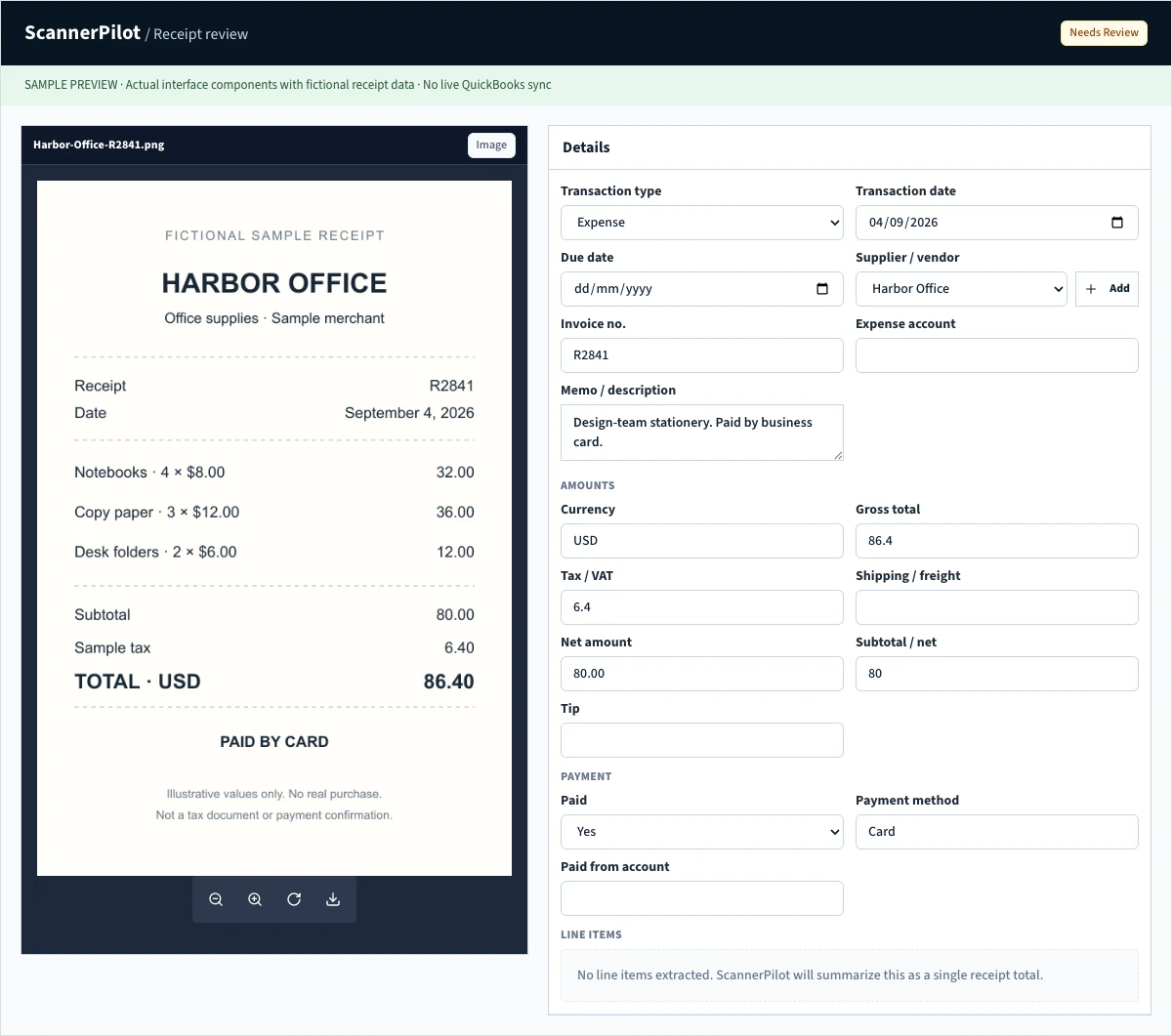
ScannerPilot routes paid receipts toward Expense or Purchase workflows and keeps the original document linked to the transaction. Those actions remain subject to review; uploading a receipt is not permission to create another entry for a purchase already recorded.
Consider this approach when your difficulty is not just collecting files, but preparing and checking them before they reach the books.
It should support your receipt routine—not become another place where unfinished documents accumulate.
How to Deal with a Backlog of Old Receipts
Do not make cleaning up the past a requirement for organizing today’s purchases.
Start the new routine now. Put historical receipts into a separately identified backlog so fresh documents do not disappear among them.
Then work through the backlog in manageable groups.
Separate businesses and periods first. Keep different companies’ records apart and group documents by their visible dates.
Check what is already recorded. An old receipt may support an existing transaction. Its recent upload does not mean it represents a new expense.
Resolve gaps deliberately. Mark unclear dates, missing pages, or uncertain business purposes. Avoid making old records appear complete by guessing.
Prioritize the order with your bookkeeper, particularly when reporting deadlines or earlier accounting periods are involved.
The purpose of the backlog exercise is to restore missing evidence and complete unfinished work—not to recreate every historical purchase.
Worked Example: Four Files, Three Purchases
The following example is fictional and illustrates the suggested organization process.
Same purchase. Keep the evidence connected to the appropriate record.
Context is available. Check for an existing transaction before completion.
“Which project was this for?” Ask the purchaser and keep it in Needs Details.
A small design business collects four files during the week:
| File received | What the reviewer finds | Outcome |
|---|---|---|
| An office-supplies receipt photo | The document is complete and its purpose is clear. | Complete the accounting review and retain it with the appropriate record. |
| An emailed copy of that receipt | It supports the same purchase as the photo. | Identify it as a repeated submission, not another expense. |
| A software receipt | The business purpose and payment details are available. | Check the existing records before completing the item. |
| A hardware-store receipt | The intended project is unclear. | Keep it in Needs Details and ask the purchaser. |
There are four files, but only three purchases.
After the weekly review, the hardware receipt remains visible as unfinished. It is not buried in the archive, and no one needs to inspect every completed receipt to rediscover the question.
That is the value of a receipt organization system: you can see what is recorded and what still needs an answer.
Storing Digital Receipts: Access, Backups, and Retention
Keep Records Accessible to the Right People
Use storage controlled by the business rather than relying exclusively on a departing employee’s phone or personal account.
Give access to the people responsible for submission, review, and bookkeeping. Avoid public sharing links for receipt folders.
Test retrieval occasionally. Ask whether an authorized person can find and open a particular receipt without help from the person who uploaded it.
Also confirm how to export documents and restore a backup. A useful archive should remain usable when a device fails or the business changes software.
Do Not Assume a Photo Automatically Replaces the Original
Whether you can discard paper originals depends on the applicable rules and your storage process.
For U.S. federal tax records, IRS Publication 583 explains that electronic storage must preserve complete, accurate, accessible, and legible records. It permits destruction of original paper records only when the stated electronic-storage requirements and ongoing procedures are satisfied. Saving an unchecked photograph is not, by itself, evidence that those conditions have been met.
IRS Publication 583: electronic records and supporting documents
Keep originals until your business has confirmed an appropriate retention policy.
Do Not Use One Universal Retention Period
“How long should I keep business receipts?” does not have one answer for every business.
The IRS ties retention to the record, the circumstances, and the relevant tax limitation period, with longer requirements in certain situations. UK guidance for self-employed business records uses a different framework tied to the relevant tax-return deadline.
IRS: How long should I keep records?
GOV.UK: how long to keep self-employed business records
Ask your accountant to establish the policy for your jurisdiction, business structure, and document types. Check non-tax requirements before disposal, too; the IRS specifically notes that insurers or creditors may require longer retention.
This guide describes an organization process, not a determination that any particular expense is deductible or that a document can be destroyed.
Frequently Asked Questions
What Is the Simplest Way to Organize Business Receipts?
Start with one receipt inbox, three statuses—Inbox, Needs Details, and Recorded—and a regular review session. Capture readable documents, add the purchase context, and connect completed receipts to their accounting records.
Keep the process simple enough that you will use it throughout the year.
Can I Organize Receipts Without a Spreadsheet?
Yes. The folder structure in this guide tracks document status without a spreadsheet. A receipt-management or accounting application can serve the same organizational purpose.
Keep the distinction clear: organizing supporting documents does not replace maintaining the business’s accounting records.
Can I Use My Phone to Scan Business Receipts?
Yes. QuickBooks Online’s mobile app supports photographing receipts for review. Check the supported formats and confirm the complete receipt is readable before submission.
Regardless of the capture method, check that the document actually reached the intended business workspace.
Are Bank Statements Enough, or Should I Keep Receipts Too?
Do not assume a bank statement alone establishes every detail needed.
The IRS identifies multiple forms of supporting evidence and notes that a combination of documents may be necessary to substantiate an expense. Retain the receipt or invoice alongside payment evidence where required.
What Should I Do If a Business Receipt Is Missing?
Request a replacement from the merchant or check whether it is available in the supplier’s account portal.
Keep the evidence you already have and tell your bookkeeper exactly what is missing. Do not create a document that pretends to be the original receipt. Ask the responsible accountant what additional evidence or treatment is appropriate.
Should I Organize Receipts by Date or Expense Category?
For the folder method in this guide, use year and month as the primary structure, with a consistent supplier-and-reference filename.
Let the accounting records hold the expense categories. This avoids maintaining multiple copies simply because a document relates to more than one category.
Give Every Receipt a Clear Next Step
Your receipts do not need a more elaborate filing cabinet.
They need one place to arrive, enough context to understand the purchase, and a clear route from unchecked document to completed record.
Start with the next receipt rather than waiting until the backlog is gone.
ScannerPilot supports that routine through document capture, extracted-field review, duplicate warnings, and approved QuickBooks records with their source files attached.
Capture it. Explain it. Review it. Keep it with the record.
That is a receipt organization system you can use every week—not just when tax preparation begins.
Published by ScannerPilot. Intuit, Dext, IRS, and GOV.UK primary documentation was checked on September 20, 2026. QuickBooks navigation describes the U.S. product; availability and menus can vary by subscription, country, and rollout. IRS guidance concerns U.S. federal tax records; the cited GOV.UK retention page concerns self-employed business records.
- IRS: What kind of records should I keep?
- IRS Publication 583: electronic records and supporting documents
- IRS: How long should I keep records?
- GOV.UK: how long to keep self-employed business records
- Intuit: upload receipts in QuickBooks Online
- Intuit: the difference between bills, checks, and expenses
- Dext: ways to add documents
- ScannerPilot: receipt and invoice capture
- ScannerPilot: the QuickBooks Online workflow
The folder structure, three status labels, and checklist are suggested organizational tools, not ScannerPilot menu names or a universal records policy. The four-file example and Harbor Office receipt are fictional. The product preview uses actual interface components with sample data; it is not a redacted customer screenshot or evidence of a live extraction or QuickBooks sync. Retention, disposal, and accounting treatment depend on the applicable rules and your business circumstances.