

Two files can represent one purchase.
The supplier emails an invoice. Your colleague uploads it.
A few days later, the supplier sends a reminder with the same invoice attached. Someone uploads that copy, too.
There are now two files waiting to be processed—but only one purchase to record.
Duplicate invoice detection helps identify supplier documents that may have already been submitted or processed. It can compare details such as the vendor, invoice number, date, amount, and file content to flag potential repeats before another accounting entry is created. ScannerPilot documents these checks within its pre-sync workflow.
The important word is potential.
Two similar invoices are not necessarily duplicates. And a repeated upload does not automatically mean your business has paid twice.
This guide explains how to investigate duplicate invoices, use QuickBooks’ existing controls, and review suspicious documents before they become duplicate Bills.
Duplicate Documents, Duplicate Bills, and Duplicate Payments Are Different Problems
Before correcting anything, identify what has actually been repeated.
Use these three categories to organize your investigation:
| What has been duplicated? | Example | What to investigate |
|---|---|---|
| The document | The same supplier invoice is uploaded as a PDF and a photograph. | Whether both files represent one invoice and whether either has been processed. |
| The accounting entry | The same supplier invoice is recorded in two QuickBooks Bills. | Which record is valid and whether payments or other transactions are linked. |
| The payment | The business sends money twice for the same obligation by mistake. | Actual payment activity, supplier records, and the appropriate correction. |
Do not treat these as interchangeable.
A repeated document can be caught before it changes the books. A duplicate Bill needs an accounting-record investigation. An actual duplicate payment requires checking what happened to the money.
A duplicate warning is a reason to investigate—not proof that another payment has occurred.
This article focuses on incoming supplier invoices, rather than customer invoices your business sends to collect payment.
How Duplicate Invoice Detection Works
A useful duplicate-checking process considers both the document itself and the purchase it represents.
Check Whether the File Is an Exact Repeat
A file hash, sometimes described as a digital fingerprint, is calculated from a file’s contents rather than its filename. Renaming a file without changing its contents does not change that hash. Microsoft documents this distinction in its file-hashing guidance.
Microsoft — file hashes compare contents, not filenames
For example, invoice-1048.pdf and invoice-1048-final.pdf might contain exactly the same file data.
But a photograph of a printed invoice has different file contents from the original PDF, even when both show the same purchase. Different file hashes therefore do not establish that two invoices represent different obligations. This follows from the distinction between file contents and the business information they depict.
File checks are useful, but they should not be your only comparison.
Compare the Invoice Details
When reviewing a possible duplicate, use the source documents to compare the following:
| Detail | What to check |
|---|---|
| Supplier | Is this the same business, even if its name is abbreviated or recorded differently? |
| Invoice number | Do the complete references match, including prefixes and leading zeros? |
| Invoice date | Are you comparing issue dates rather than upload dates or due dates? |
| Amount and currency | Are the invoice totals and currencies the same? |
| Purchased items or service period | Do the documents describe the same delivery, work, or billing period? |
This is a reviewer’s checklist, not a claim that every duplicate invoice checker automatically compares every field.
Check extracted values against the originals, too. A missing reference can weaken a rules-based comparison. Dext, for example, notes that missing key fields can prevent its system from recognizing duplicate Cost documents.
Dext — duplicate Cost documents, modes, and missing-field limits
Confirm What the Software Compares Against
Ask a direct question before relying on any duplicate detection tool:
Does it compare this invoice with previous uploads, approved documents, synced transactions, or existing QuickBooks records?
Those are different comparison sets.
Include documents entered directly in QuickBooks or submitted through other applications in your evaluation. Do not assume a pre-sync document check automatically examines every historical transaction in your accounting company.
Where coverage is uncertain, inspect the accounting records separately.
Helps identify an unchanged file, even when its filename is different.
Vendor, invoice number, date, and total help compare different files.
The quality of invoice OCR matters here: confirm the extracted reference and amount against the original before using them in a duplicate decision.
When Similar Invoices Should Not Be Rejected Automatically
A warning should help you make a better decision, not pressure you to remove a document.
Consider these illustrative situations.
Recurring charges with identical amounts. A supplier might charge the same amount for August and September. Check the invoice references and service periods before deciding whether one is a repeat.
A revised invoice. A supplier may resend an invoice after correcting a charge. Investigate whether the new document replaces the earlier version, and establish how any existing entry should be handled. Do not automatically approve both or discard the revision.
An invoice followed by proof of payment. These documents can relate to the same purchase without being interchangeable. Determine whether the later document supports an existing transaction rather than requiring a new one.
Matching references from different suppliers. Two unrelated vendors can each issue invoice number 1001. Compare the supplier identity, not just the number.
The guiding question is:
“Do these documents represent the same obligation?”
That is more useful than asking only whether they contain the same amount.
How to Review a Possible Duplicate Invoice Before Syncing
Use a consistent process so different reviewers do not resolve the same situation differently.
1. Pause the New Entry and Find the Earlier Record
Do not approve another Bill until you understand the warning.
Locate the earlier document and check its status. Is it awaiting review, already approved, successfully synced, or showing an unresolved sync attempt?
Check the correct company and client workspace.
A useful starting point is the supplier and invoice reference. Broaden the search when a reference is missing or appears incorrectly extracted.
Also look beyond the current upload queue. The earlier purchase may already exist in QuickBooks.
2. Compare the Original Documents
Open the source files rather than relying only on extracted fields.
Confirm the supplier, reference, date, total, currency, and items or service period.
Look for meaningful differences. A new filename is not enough. A changed invoice amount deserves investigation rather than an automatic “not duplicate” decision.
When the documents are unclear, request clarification from the person who submitted them or from the supplier.
Do not invent a new invoice reference simply to bypass a warning.
3. Check the Accounting and Payment History
Determine whether the purchase has already been recorded and whether a payment is associated with it.
QuickBooks distinguishes Bills for purchases payable later from Expenses or Checks for purchases paid immediately. Intuit also warns against using a new Expense or Check to pay an existing Bill, because this can leave the Bill appearing unpaid.
Intuit — differences between Bills, Checks, and Expenses
That distinction matters when a receipt arrives after an invoice has already been entered.
The new document may support the existing purchase rather than justify another accounting entry.
4. Record the Decision and Its Reason
Use clear outcomes such as confirmed repeat submission, separate valid invoice, or needs clarification.
These are suggested review labels, not specific ScannerPilot button names.
For a confirmed repeat, retain enough information to identify the valid document and explain why the additional submission was not processed.
For a legitimate separate invoice, record the distinguishing detail—for example, a different service period or delivery reference.
For an unresolved case, assign an owner and a next action.
“Reviewed” should mean someone can understand the decision later—not merely that a warning disappeared.
Supplier, full reference, issue date, amount, currency, and items or service period.
Correct company, earlier sync status, QuickBooks transactions, and actual payment history.
Identify the original and document why the additional submission will not create another entry.
Record the distinguishing evidence, then complete the required accounting review and approval.
Assign an owner and a next action. Keep the new entry paused while the question is unresolved.
How to Find and Prevent Duplicate Bills in QuickBooks Online
QuickBooks provides controls that should be part of your review process.
Enable the Duplicate Bill-Number Warning
Intuit’s support guidance describes a warning for entering a bill number already used for the same vendor.
Open Settings → Account and settings → Advanced → Other preferences, enable the duplicate bill-number warning, and save the setting. Confirm the wording and availability in your own account.
Intuit support — enable the duplicate Bill-number warning
This is a vendor-and-reference warning, not evidence of every possible duplicate.
The setup guidance also does not establish how every spreadsheet import or connected application handles duplicates. Test the actual entry route your business uses rather than assuming an on-screen warning protects all workflows equally.
Review Existing Transactions for Repeated References
Intuit documents two ways to investigate duplicate transaction numbers.
In All apps → Expenses & Bills → Expense transactions, sort by the NO. column and inspect repeated references.
Alternatively, open Reports → Standard reports, search for Transaction List by Vendor, select the relevant reporting period, and sort by transaction number. Intuit’s instructions use All Dates for a comprehensive review.
Intuit — find duplicate transaction numbers
Use the results to identify candidates for investigation—not as an automatic deletion list.
A repeated reference across different vendors may be legitimate. Different references do not necessarily rule out a repeated purchase.
Check Bank Transactions Separately
Document review and bank-transaction matching are separate steps.
QuickBooks can suggest matching downloaded bank transactions with existing records. Intuit also documents warnings for situations where an expected matching record may still be arriving from another application.
Intuit — matching downloaded bank transactions
Intuit — potential-match warnings while records are still arriving
Before recording another expense from the bank feed, check whether the corresponding transaction already exists or is still syncing.
An invoice upload and a bank download should not become two records of the same purchase merely because they arrived through different channels.
How ScannerPilot Supports Duplicate Invoice Checks
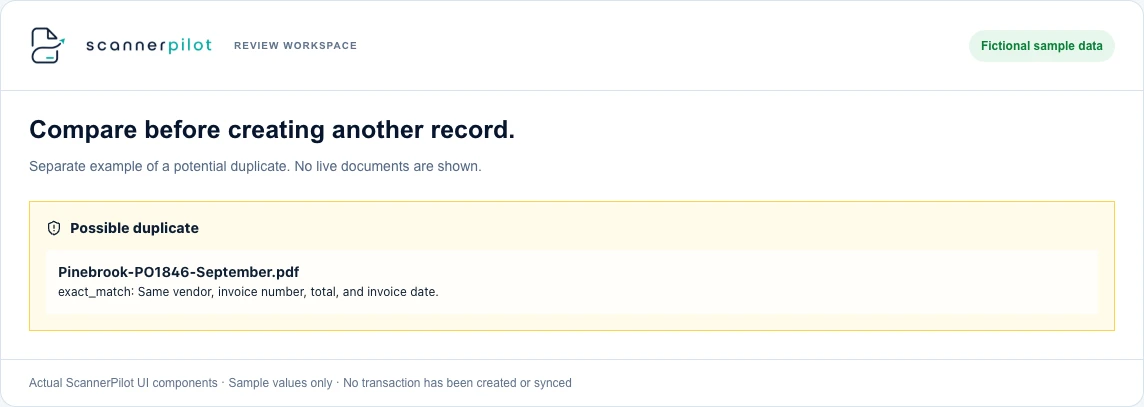
ScannerPilot places duplicate checks before the creation of QuickBooks transactions. Its documented comparison signals include the vendor, invoice number, invoice date, total amount, and file checksum. Exact and likely repeats are flagged for review.
ScannerPilot — duplicate detection before approved sync
The review-first workflow keeps extracted information and source-document context available before approval. Reviewers can examine duplicate signals alongside the information that will enter the accounting system.
Use that workflow to establish whether a document is new, a repeat, or still unresolved.
After approval, ScannerPilot supports creating the appropriate QuickBooks Bill or Expense with its original document attached. It also exposes attachment status and supports retrying failed attachments.
Keep the transaction and attachment checks separate. A missing PDF should prompt an attachment investigation—not an assumption that the Bill needs to be created again.
For documents entered directly in QuickBooks or through another application, confirm that your duplicate-review process covers those records too.
For the surrounding review and verification stages, see our guide to automated invoice processing.
Worked Example: Three Uploads, but Only Two Valid Bills
The following example is fictional. It illustrates a review decision, not an actual ScannerPilot test or customer result.
Suppose your business receives these documents from Oakmere Facilities:
| Uploaded document | Invoice reference | Service period | Total |
|---|---|---|---|
| Original supplier PDF | OF-0826 | August 2026 | $720.00 |
| Photograph of the same invoice | OF-0826 | August 2026 | $720.00 |
| New supplier PDF | OF-0926 | September 2026 | $720.00 |
All three documents have the same supplier and amount.
The reviewer checks the originals and confirms that the photograph repeats the August invoice. It should not create another Bill.
The September invoice represents a separate service period with a different reference. It should continue through the normal review process.
The result is two valid Bills totaling $1,440.00, assuming neither was already recorded—not three Bills simply because three files were submitted.
This example exposes two different mistakes to avoid:
Relying only on file identity: The photograph is a different file but represents the same August invoice.
Relying only on the amount: The September charge matches August’s amount but represents a separate obligation.
A useful duplicate-checking process needs to help reviewers distinguish both cases.
Assuming neither invoice was already recorded.
What to Do When a Duplicate Bill Already Exists
Once an extra Bill has reached QuickBooks, treat the issue as an accounting correction rather than a document-cleanup task.
First, identify the valid invoice and inspect both accounting records. Check linked payments, attachments, and the affected reporting period before changing anything.
Do not simply alter the reference to make the duplicate less visible.
If the issue involves reconciled transactions, proceed carefully. Intuit explains that editing, deleting, voiding, or otherwise changing reconciled transactions can affect the next reconciliation’s beginning balance. Involve your bookkeeper or accountant when the correction affects reconciled or closed periods.
Intuit — changes to reconciled transactions and beginning balances
If money may have left the business twice, verify the actual payments and contact the supplier to establish what happened. Agree on the appropriate refund or credit process with the person responsible for your accounts.
Then address the route that created the problem.
Was it a repeat upload? An invoice entered in two applications? A Bill and a separately recorded Expense? An uncertain sync attempt?
Correcting the extra entry resolves the immediate issue. Fixing the workflow addresses its cause.
What to Compare in Duplicate Invoice Detection Software
Do not evaluate a duplicate invoice checker solely by whether its feature list says “duplicate detection.”
Compare coverage, decision controls, and review evidence.
Dext, for example, documents duplicate checks for Cost documents. Its Automatic mode removes suspected duplicates, while Review mode flags them for a user decision. Removed items can be located in submission history and restored. Dext therefore offers review-based handling as well as automation; human review is not unique to ScannerPilot.
Dext — duplicate Cost documents, modes, and missing-field limits
ScannerPilot’s published approach emphasizes reviewing likely duplicates before QuickBooks sync.
For either approach, ask:
What is compared? Confirm the fields and historical records included.
What happens after a warning? Establish who can decide, what evidence is shown, and how legitimate invoices remain available.
Can the decision be traced? Check whether a reviewer can identify the original document and understand why another submission was rejected or retained.
Test these questions with controlled sample documents. Include an exact repeat, a photograph of the same invoice, a legitimate recurring charge, and a document with a missing reference.
Do not create test duplicates in live books.
The objective is not the highest number of warnings. It is correctly identifying repeat invoices without blocking valid ones.
Frequently Asked Questions
Does the same invoice number always mean a duplicate?
No. Check the supplier and the underlying purchase. Intuit’s duplicate bill-number guidance is specifically tied to a number already used for the same vendor, rather than treating the number as universally unique.
Can two invoices with the same amount both be legitimate?
Yes. In the worked example above, August and September each have a valid $720.00 charge. Compare references, dates, items, and service periods rather than deciding from the amount alone.
Can duplicate detection catch a PDF and a photo of the same invoice?
Field-based comparisons can help identify documents representing the same invoice even when the files differ. ScannerPilot documents checks using invoice details as well as file checksum, but a successful match should not be assumed for every document. Review the warning and the original files.
Does a duplicate warning mean the supplier has been paid twice?
No. A warning identifies something to investigate. Check the accounting entries and actual payment activity separately before concluding that money has been sent twice.
Should duplicate invoices be deleted automatically?
That depends on the workflow and the reliability of the decision. Start by reviewing representative documents and understanding the consequences of an incorrect match. Where automatic handling is used, verify how the original submission and any removed document can be found and restored.
Can duplicate invoice detection guarantee that every duplicate payment is prevented?
No. Document comparison, accounting-entry review, and payment approval address different stages. Missing information can also prevent a match; Dext explicitly notes this limitation for its document checks. Keep payment-history checks separate from upload warnings.
Catch the Repeat Before It Becomes Another Entry
A second copy of an invoice should not automatically become a second Bill.
The practical approach is to compare the documents, check the existing records, and make the review decision visible before syncing.
ScannerPilot brings source documents, extracted fields, duplicate signals, and approval into a review-first workflow for accounting teams.
Start with a small group of real supplier documents. Confirm how your team identifies a repeat, handles a legitimate similar invoice, and verifies the resulting QuickBooks record.
The same invoice can arrive twice. Recording the purchase twice should never be the default.
Published by ScannerPilot. Microsoft, Intuit, and Dext primary documentation was checked on September 20, 2026. QuickBooks guidance refers to the U.S. product; menus and features can vary by region, plan, account, and rollout. The duplicate Bill-number setting is supported by an Intuit team response.
- Microsoft — file hashes compare contents, not filenames
- Dext — duplicate Cost documents, modes, and missing-field limits
- Intuit support — enable the duplicate Bill-number warning
- Intuit — find duplicate transaction numbers
- Intuit — differences between Bills, Checks, and Expenses
- Intuit — matching downloaded bank transactions
- Intuit — potential-match warnings while records are still arriving
- Intuit — changes to reconciled transactions and beginning balances
- ScannerPilot — duplicate detection before approved sync
- ScannerPilot — QuickBooks Online workflow
Oakmere Facilities and its invoices are fictional, not a customer result or product test. The Pinebrook warning preview uses real interface components with sample values. Comparison diagrams explain review decisions; they do not promise complete historical QuickBooks coverage or prevention of every duplicate payment.