
From invoice text to useful information
You can see the supplier name, invoice number, and total clearly on the page.
But someone still needs to move that information into your accounting system.
That is the gap invoice OCR helps close.
Invoice OCR uses optical character recognition to turn text in scanned invoices and images into machine-readable text. Invoice-processing software can then organize that information into fields such as supplier, invoice number, dates, tax, and total. Those are related tasks, but they are not the same thing.
Reading “$506.00” correctly is one job. Knowing that it belongs in the invoice total field—and checking it before creating a transaction—is another.
This guide explains how invoice data extraction works, what to check, and how to move from a supplier document to information you can confidently review.
What Is Invoice OCR?
OCR stands for optical character recognition. It converts text that exists inside an image into text a computer can process. For invoices, the starting point might be a scanned paper bill, a photograph, or an image-only PDF.
Invoice extraction software goes further by identifying what the text represents.
For example, instead of returning a loose collection of words and numbers, an invoice extraction system can identify a supplier name, due date, invoice reference, and amount due. Microsoft’s invoice-processing documentation describes this distinction between analyzing invoice text and returning structured fields.
Microsoft: invoice text, key fields, and structured output
Think of the difference this way:
The second version is easier to check, map, and use.
Invoice OCR, Data Extraction, and Invoice Processing: What Is the Difference?
These terms describe different parts of the job.
Invoice OCR reads the text. Its immediate purpose is recognizing characters, words, and numbers in a document image.
Invoice data extraction identifies the fields. It determines which information represents the supplier, invoice reference, dates, amounts, and purchased items. Modern extraction systems can use machine learning to interpret document layouts and relationships rather than returning only a text dump.
Invoice processing handles what happens next. That includes your checks, accounting decisions, approvals, and recording process. Data extraction is a component of invoice automation, not the entire accounts payable process.
This distinction matters when choosing software.
A searchable PDF may solve a document-storage problem. A spreadsheet of extracted fields may solve a data-preparation problem. Neither, by itself, proves that the correct transaction has reached your books.
Start by deciding what “finished” should mean for your team.
Why Some PDF Invoices Need OCR—and Others Don’t
Two invoices can look identical on screen while storing their information differently.
Digital PDFs with an Existing Text Layer
A PDF created directly by software may already contain usable text. That text can potentially be extracted without recognizing every character from an image. Native PDFs and scanned pages can also appear within the same document.
Try selecting a line of text and copying it into a text editor. This is a useful initial check, although selectable text does not prove that the information is accurate or correctly structured.
Scanned PDFs and Invoice Photos
An image-only scan contains a picture of the document rather than searchable text. OCR adds machine-readable text so the contents can be searched, selected, or processed. Adobe documents this process for scanned PDFs.
Scanned PDFs That Have Already Been OCR-Processed
A scanned invoice can contain both its original page image and an OCR-generated text layer. It may therefore look like a scan while allowing text selection.
That existing text layer still needs checking. Adobe recommends reviewing recognized text for accuracy and completeness after OCR.
The practical lesson: “It is a PDF” does not tell you how its information is stored—or whether the extracted values are ready to use.
Native text
Created by software with a usable text layer.
Extract the textCheck the values and their meaning.
Image only
A scanned page or photo without usable text.
Recognize the textUse OCR, then inspect the result.
Scan + text layer
A page image with text from an earlier OCR pass.
Verify the textCompare it with the visible source.
What Data Can Invoice OCR Software Extract?
Supported fields vary by product. Invoice extraction services commonly distinguish identifying information, dates, financial amounts, and purchased items. For example, Amazon Textract documents separate fields for invoice number, purchase order number, subtotal, tax, total, amount due, and previous balance.
Use the following as an evaluation checklist—not a promise that every application extracts every field:
| Field group | Details to look for | What to verify |
|---|---|---|
| Supplier information | Supplier name and address | The supplier has not been confused with your company or the delivery recipient. |
| Document references | Invoice number and purchase order number | The references are assigned to the correct fields. |
| Dates | Invoice date, due date, and delivery date | Similar-looking dates have not been swapped. |
| Amounts | Subtotal, discount, tax, total, and amount due | The selected amount matches the purpose of the field. |
| Line items | Descriptions, quantities, unit prices, and line amounts | Values remain associated with the correct purchased item. |
Invoice summary information and line items are different extraction outputs. Amazon’s documentation explicitly separates them, which is a useful distinction to ask about when evaluating invoice scanning software.
Reading the invoice total does not demonstrate that every row of an itemized invoice has been captured correctly.
How to Extract Data from PDF Invoices and Scanned Documents
You can approach invoice data extraction in four stages. The exact interface varies, but the review decisions remain useful across tools.
1. Start with a Complete, Readable Document
Use the original supplier PDF when available. For paper invoices, capture the complete page and check that the text is readable before submitting it.
Avoid unnecessarily converting or reducing the quality of a supported file. Amazon’s OCR guidance recommends high-quality inputs and advises against converting or downsampling documents already in a supported format.
Amazon Textract: document-quality and table-extraction guidance
Check completeness, too.
For a multi-page invoice, make sure the submission includes the pages containing the item details, charges, and final total. Keep unrelated invoices separate unless your chosen system explicitly supports identifying them within a combined document.
A useful first question is: “Could a reviewer resolve this invoice using the file I am uploading?”
2. Extract the Text and Identify Its Meaning
The software reads the document and identifies relevant fields.
An invoice-specific extraction system can interpret different labels for similar information. For example, Amazon documents normalizing terms such as bill number, invoice number, and receipt number into a consistent reference field.
Do not assume every visible reference means the same thing.
Consider a document containing both:
- Invoice number: AOS-2048
- Purchase order: PO-7182
Both references may be read perfectly. The result is still wrong if the purchase order number is placed in the invoice number field.
This is why reviewing field labels matters as much as reviewing the characters.
3. Organize the Extracted Values
The next task is making the information consistent enough to use.
For example, you might need dates in one standard format, amounts treated as numbers rather than text, and supplier references kept intact.
Be careful with ambiguous values. Suppose an invoice displays the date 09/10/2026. Do not silently decide whether that means September 10 or October 9 without checking the document’s context.
Likewise, do not remove leading zeros from an invoice reference simply because it resembles a number.
Your objective should be consistent information without changing its meaning.
4. Validate Before Exporting or Recording
Compare the prepared fields with the source document.
Check the invoice reference, dates, amounts, and any details that affect the accounting record. Resolve unclear values instead of approving them merely to clear a queue.
For QuickBooks Online, confirm the transaction type separately. Intuit distinguishes unpaid purchases recorded as Bills from purchases paid immediately. It also warns against using a new Expense or Check to pay an existing Bill.
Intuit: Bills, Checks, Expenses, and payments against existing Bills
The invoice image alone is not a substitute for checking your existing records.
Extraction prepares the information. Review determines whether it is ready to use.
Worked Example: When the Numbers Are Read Correctly but the Total Is Wrong
The following example is fictional. It illustrates a review decision, not a measured result from ScannerPilot or another product.
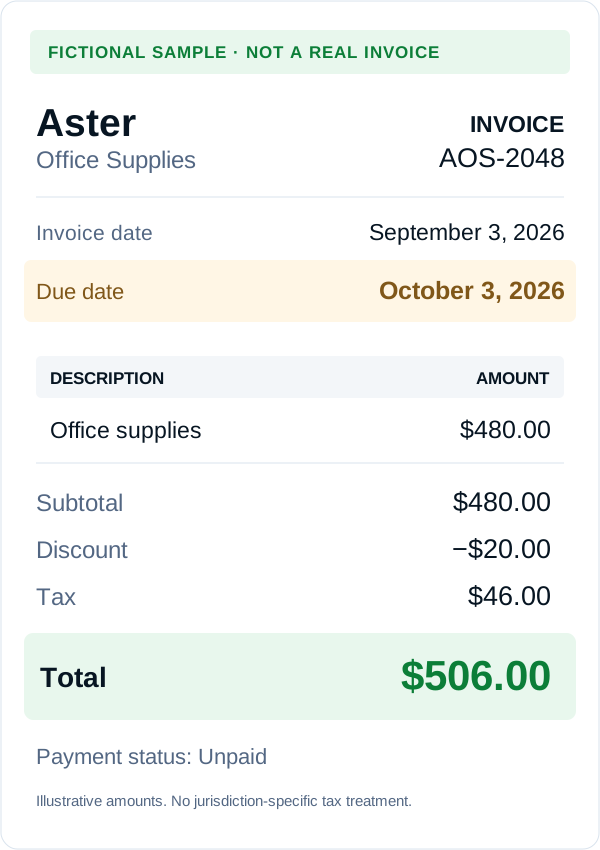
Imagine an unpaid invoice from Aster Office Supplies with these details:
- Invoice number: AOS-2048
- Invoice date: September 3, 2026
- Due date: October 3, 2026
The document shows a subtotal of $480.00, a discount of $20.00, tax of $46.00, and a final total of $506.00. These are illustrative amounts, not an example of a particular jurisdiction’s tax rules.
Suppose an extraction tool prepares this result:
| Field | What the invoice shows | Illustrative extracted result | Review decision |
|---|---|---|---|
| Supplier | Aster Office Supplies | Aster Office Supplies | Confirm. |
| Invoice number | AOS-2048 | AOS-2048 | Confirm. |
| Invoice date | September 3, 2026 | September 3, 2026 | Confirm. |
| Due date | October 3, 2026 | September 3, 2026 | Correct the date. |
| Invoice total | $506.00 | $480.00 | Replace the subtotal with the final total. |
The extraction has not necessarily misread the digits in 480.00. Instead, it has assigned a real amount to the wrong field.
For this particular invoice, the arithmetic provides another check:
After correcting the due date and total, you would still verify the supplier mapping, accounting category, and whether the invoice was already recorded.
This example shows why a document that looks almost correct still deserves review.
Correct text recognition is not the same as a correct accounting entry.
How Accurate Is Invoice OCR?
There is no single accuracy percentage that describes every invoice, field, and document-processing tool.
Document quality, layout differences, and the model being used affect extraction. Microsoft specifically notes that variations in document structure can change model performance and recommends including representative document variations when evaluating or training models.
When evaluating results, separate three questions.
Are the Required Fields Correct?
Measure the values that matter to your process.
For a basic supplier invoice, that might include the supplier, reference, invoice date, due date, and total. More detailed workflows may require additional fields.
Define the required fields before testing. Otherwise, it is too easy to count convenient results and ignore missing information.
Is the Entire Document Ready?
A high field-level result can hide a lower complete-document result.
Consider a fictional test of 20 invoices with 10 required fields each. That produces 200 field checks.
If 190 fields are correct, field accuracy is 95%.
But suppose the 10 incorrect fields occur on 10 different invoices. Only 10 of the 20 invoices have every required field correct: a 50% complete-document result.
The two percentages answer different questions. Neither tells you, on its own, how much review work remains.
20 invoices · 10 required fields each · one incorrect field on each of the first 10 invoices
- 01
- 02
- 03
- 04
- 05
- 06
- 07
- 08
- 09
- 10
- 11
- 12
- 13
- 14
- 15
- 16
- 17
- 18
- 19
- 20
What Does a Confidence Score Actually Tell You?
A confidence score represents the model’s estimated certainty about a prediction. It is not the same as measured accuracy across your own document set. Microsoft distinguishes predicted-field confidence from model accuracy and recommends human review for important workflows.
A confident reading of an amount does not confirm that the purchase is legitimate, the supplier mapping is correct, or the transaction has not already been entered.
Measure extraction quality, complete-document readiness, and review effort separately.
What About Invoice Line-Item Extraction?
Invoice line-item extraction captures the details within an invoice’s item table rather than only its headline fields.
That can include item descriptions, quantities, unit prices, and product codes. Amazon’s invoice-processing documentation distinguishes these values from summary information and raw recognized text.
Line items deserve their own test.
Use an invoice with more than one row and compare each extracted description with its quantity and amount. Include a multi-page example when those documents are part of your normal workload.
Look for omitted rows, repeated headings interpreted as items, and values associated with the wrong row. These are useful checks, not assumptions about how a particular tool will perform.
Complex table layouts also need attention. Amazon notes that merged cells and irregular rows or columns can produce inconsistent table-extraction results.
Finally, distinguish extracting an item from deciding how to code it.
Reading “office equipment” from an invoice does not, by itself, settle the accounting treatment.
How to Improve Your Invoice Data Extraction Process
Improvement should start with the problems you actually encounter.
Improve the source when the text is unclear. Re-scan incomplete or unreadable pages rather than asking a reviewer to guess. Adobe’s scanning tools, for example, include image enhancement and straightening before text recognition.
Track recurring corrections. Note whether you repeatedly fix supplier names, dates, totals, or item rows. These observations help you distinguish document-quality problems from field-mapping problems.
Create an exception route. Decide what happens when an amount is unclear, a reference is missing, or a duplicate is suspected. Assign someone to resolve the issue instead of leaving an apparently finished record in the queue.
A simple improvement log might record the supplier, document type, incorrect field, correction, and time spent.
Review that log periodically. Focus first on errors that change amounts, references, dates, or destination records—not cosmetic differences that do not affect your process.
Using Invoice OCR with QuickBooks Online and ScannerPilot
QuickBooks Online already supports uploading supplier bills and reviewing extracted information. A separate invoice-processing tool is therefore not the only route available.
Intuit: enter and upload supplier bills
ScannerPilot provides a document-review workflow focused on QuickBooks Online.
You can upload supplier PDFs or images, extract invoice fields, and review the values before approving them. Its published capture features include vendor details, invoice numbers, dates, tax, totals, and line items.
See the receipt and invoice capture features for the document and field workflow.
The review process also includes comparing the document with extracted fields and checking possible duplicates. ScannerPilot documents duplicate signals including vendor, invoice number, date, amount, and file checksum.
After approval, its QuickBooks integration supports creating the appropriate Bill or Expense and attaching the original document.
Explore ScannerPilot for QuickBooks Online for the review and approved-sync workflow.
Approach the workflow in this order:
Upload the source → Check the extracted fields → Resolve warnings → Confirm the accounting details → Approve and verify the result
For your first batch, keep the volume manageable. Open the resulting QuickBooks records and their attachments rather than judging success only by the number of files uploaded.
For the next step, learn how to import PDF invoices into QuickBooks Online. If you are choosing a tool, compare receipt scanner software for QuickBooks.
Frequently Asked Questions
Can invoice OCR extract data from scanned PDFs?
Yes. OCR recognizes text in image-based documents, including scanned PDFs. Invoice extraction software can then identify relevant fields. The supported formats and fields depend on the product.
Do all PDF invoices require OCR?
No. Some PDFs already contain a usable text layer that can be extracted directly. Image-only scans need text recognition, and documents can contain a mixture of native text and scanned content.
Is invoice OCR the same as AI invoice processing?
Not exactly. OCR recognizes text. AI-assisted invoice extraction can also interpret the relationships between text, labels, and fields. Invoice processing includes the subsequent operational steps; recognizing text is only part of that work.
Can invoice OCR extract line items?
Some invoice extraction systems support line items as well as summary fields. Check which item details your chosen product captures and test them on representative invoices. Summary-field extraction alone does not demonstrate complete line-item extraction.
Does extracting an invoice number detect duplicates?
Not by itself. Duplicate detection is an additional control that compares information against other records. ScannerPilot, for example, documents using several document signals—not just the invoice number—to flag possible duplicates before sync.
Does an invoice OCR tool automatically create a QuickBooks Bill?
Only when the product includes that integration and the relevant workflow is completed. ScannerPilot’s published process requires reviewing and approving the information before creating the QuickBooks transaction.
Turn Invoice Text into Information You Can Use
The purpose of invoice OCR is not simply to make a PDF searchable.
For your bookkeeping process, the useful outcome is information that has been checked, placed in the right fields, and connected to the correct record.
ScannerPilot helps move supplier documents through extraction, review, and approved QuickBooks Online sync, with the original file attached.
Start with one representative invoice. Check what was read, what each value means, and what reaches your books.
Let the software read the invoice. Keep the decision about what enters your accounts visible.
This guide is published by ScannerPilot. Primary documentation from Microsoft, Amazon Web Services, Adobe, and Intuit was checked on September 20, 2026. The examples explain review decisions rather than report independent product tests. Supported fields and formats vary by product; QuickBooks sources describe the U.S. product.
- Microsoft — invoice model and structured extraction
- Microsoft — accuracy and confidence
- Amazon Textract — invoice fields
- Amazon Textract — summary fields and line items
- Amazon Textract — input quality and table guidance
- Adobe — OCR for scanned PDFs
- Adobe — review recognized text
- Intuit — upload and enter supplier bills
- Intuit — Bills, Checks, and Expenses
- ScannerPilot — receipt and invoice capture
- ScannerPilot — QuickBooks Online workflow
Aster Office Supplies is fictional. Its invoice, extracted values, and review decisions illustrate field-mapping errors; they are not actual ScannerPilot results. The 95% and 50% figures are a fictional arithmetic example, not product performance claims. The sample tax amount does not represent a jurisdiction’s tax rules.