A digital invoice should move the work forward
The supplier sends an invoice. Someone downloads it, opens a spreadsheet, copies the details, creates a bill in QuickBooks, and uploads the PDF again.
The document is digital. The work is still manual.
Automated invoice processing connects document capture, data extraction, review, approval, and accounting entry so you do not have to repeat the same data-entry task at every stage. Depending on the software and configuration, broader invoice automation can also include payment-related workflows.
But getting information out of a PDF is only part of the job.
You still need to know whether the supplier is correct, whether the invoice already exists, who should approve it, and whether the final accounting record includes its supporting document.
This guide focuses on that journey: turning an incoming supplier invoice into a reviewed QuickBooks Online Bill with its original file attached.
The goal is not to remove every human decision. It is to stop making people retype information before they can make those decisions.
What Is Automated Invoice Processing?
Automated invoice processing uses software to handle tasks involved in receiving, interpreting, checking, and recording invoices. A broader accounts payable workflow can continue through payment and archiving, but the exact scope depends on the system.
For this guide, the workflow is:
Collect → Extract → Check → Review → Approve → Sync and verify
Each stage should answer a different question.
| Stage | The question your workflow should answer |
|---|---|
| Collect | Do we have the complete document in the correct company workspace? |
| Extract | Have the invoice details been prepared for review? |
| Check | Are the values consistent, and could this invoice already be recorded? |
| Review | Are the supplier, transaction type, and accounting details correct? |
| Approve | Has the responsible person cleared the document for recording? |
| Sync and verify | Does the intended QuickBooks record exist with the correct attachment? |
These are suggested operational checkpoints, not prescribed software menu names.
The distinction matters: an uploaded invoice is not necessarily a processed invoice.
Decide what completion means before judging how much of your process has been automated.
- 01CollectComplete document in the correct company workspaceSource PDF or image
- 02ExtractPrepare invoice fields and line itemsField values + original document
- 03CheckVerify values and investigate possible duplicatesChecked values + resolved warnings
- 04ReviewConfirm supplier, transaction type, and accounting detailsReviewed fields + accounting mappings
- 05ApproveThe responsible person clears the document for recordingApproved values + source file
- 06Sync and verifyInspect the QuickBooks record and open its attachment
Invoice OCR Is a Step—not the Whole Workflow
Invoice OCR and data extraction prepare information from the document. An extraction system can identify summary fields, such as vendor and total, separately from the line items describing what was purchased. Amazon Textract’s invoice documentation makes this separation explicit.
Amazon Textract: summary fields and line-item groups
Invoice processing asks what should happen to that information next.
For example, extracting the supplier name does not answer whether the correct vendor has been selected in QuickBooks. Reading the invoice total does not answer whether the same purchase has already been entered.
Use this distinction when evaluating invoice processing software:
- Extraction success: The software has prepared the invoice information.
- Workflow success: The information has been checked, approved, and recorded correctly, with the source available for later review.
Build your process around the second outcome.
For the extraction details, read our guide to invoice OCR. Here, the focus is on the decisions that take prepared data through to a completed record.
How to Automate Invoice Processing for QuickBooks Online
Step 1: Collect the Complete Invoice in the Correct Workspace
Start by establishing one clear destination for incoming supplier documents.
For a small business, that might be a single document queue. For a bookkeeping firm, each client should have an identifiable intake destination and accounting connection.
ScannerPilot supports separate client document workspaces, bulk uploads, and a QuickBooks Online company connection for each workspace. Its feature documentation also lists email-in bills as a workflow option when enabled.
Explore the client workspaces and capture features to check which intake options fit your process.
Before uploading a batch, check the destination company.
Then check the source itself. Keep all pages of a multi-page invoice together, and make sure a reviewer can see the document’s references, charges, and final amount. Separate unrelated invoices unless your chosen tool explicitly supports splitting a combined file.
Give submitters a simple rule:
Repeated uploads should not become your default response when someone is uncertain about a document’s status. Establish a way to check its progress instead.
Step 2: Extract the Invoice Details Without Retyping
Next, let the software prepare the information that would otherwise need to be copied into a form.
ScannerPilot’s published invoice-capture features include extracting the vendor, invoice number, dates, tax, total, and line items from supplier documents. It presents the results for review before approval.
At this stage, your objective is a useful first pass—not an automatically trusted accounting record.
Make sure the prepared information contains the fields your team requires. Do not treat “extraction complete” as confirmation that every required value is present.
For invoices with itemized purchases, check the item details separately from the header and total. Summary-field extraction and line-item extraction are distinct outputs, so a correct total does not demonstrate that every item has been captured.
Keep the original document available throughout the next stages. Reviewers should not need to search through their inboxes to resolve an unclear field.
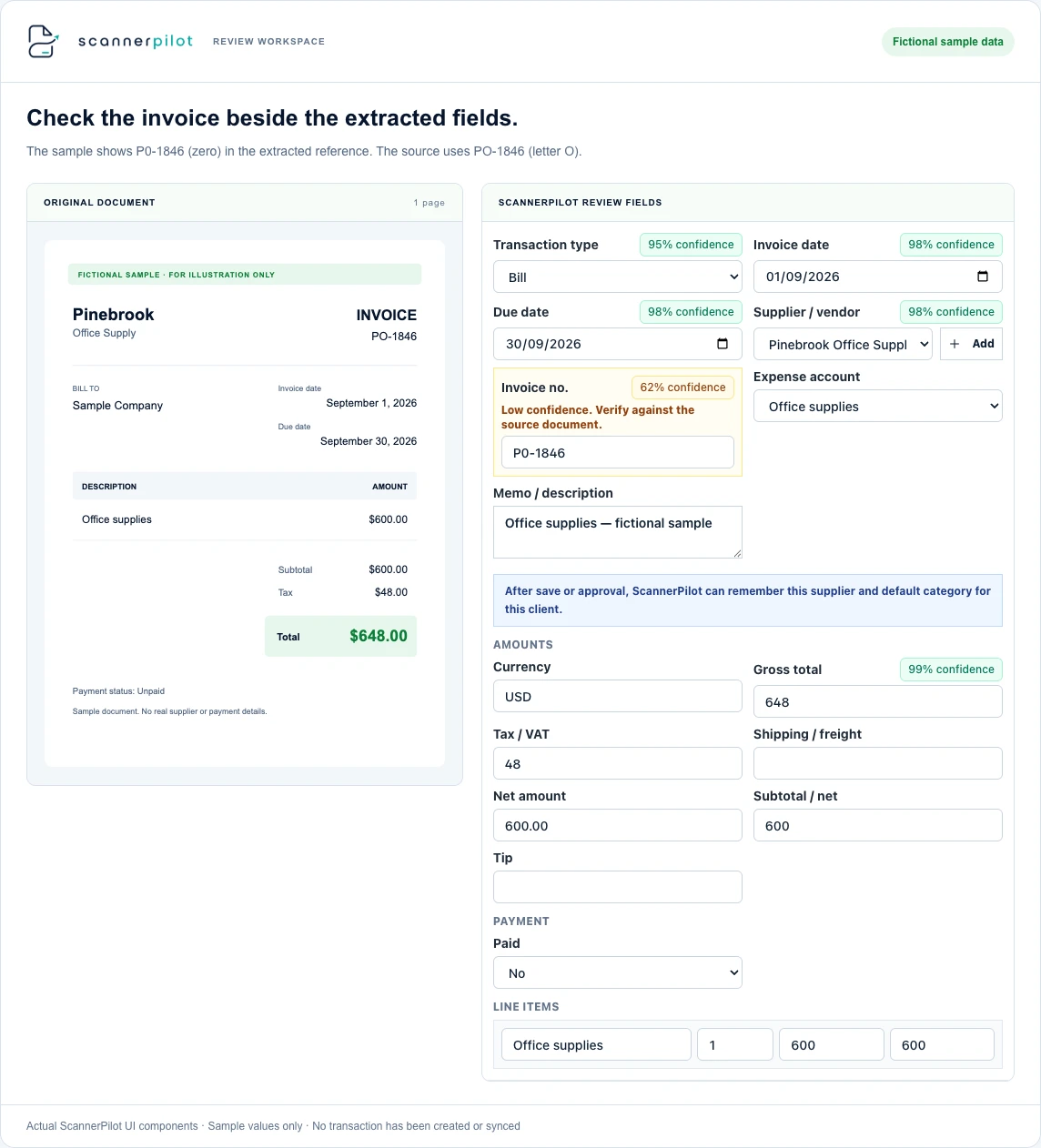
Step 3: Check the Values and Investigate Possible Duplicates
Before deciding how to record the invoice, compare the prepared information with the source.
Check whether the invoice number is actually the invoice number—not a purchase order reference. Confirm that the due date has not been confused with the issue date. Inspect the final amount rather than accepting whichever number appears most prominently.
Where appropriate, compare the subtotal, discounts, tax, and additional charges with the final total. Investigate differences rather than forcing the numbers to agree.
Then check for possible duplicates.
ScannerPilot documents duplicate checks using the vendor, invoice number, invoice date, total amount, and file checksum. These signals help identify repeated documents before creating QuickBooks transactions.
Treat a warning as a review task, not an automatic conclusion.
Two files may represent one purchase. Two invoices with the same supplier and amount may represent separate purchases.
Also ask what your tool compares: previous uploads, published documents, existing accounting transactions, or some combination. Do not assume that a document duplicate check covers every record already in QuickBooks.
Resolve whether the invoice is new before creating a new entry.
See the duplicate detection workflow for the document checks and review decisions.
Step 4: Confirm the Transaction Type and Accounting Details
An invoice can be read correctly and still be recorded incorrectly.
First, determine what the document represents.
An unpaid supplier purchase belongs in a Bill when you will pay later. An immediately paid purchase may be recorded as an Expense or Check, as appropriate. When a Bill already exists, use the bill-payment workflow rather than creating a separate Expense for the same purchase. Intuit documents these distinctions explicitly.
Intuit: Bills, Expenses, Checks, and paying an existing Bill
Next, verify the vendor and accounting treatment.
QuickBooks’ Bill form includes the vendor, bill date, due date, bill number, category or item details, amount, and applicable tax. These are accounting decisions as well as extracted document values.
Intuit: enter and review supplier Bills
Check that the selected vendor is the intended record. Review the account or category rather than assuming the supplier’s name tells you how every purchase should be coded.
A familiar supplier can send an unfamiliar type of charge.
Use defaults to reduce repetitive selections, but keep exceptions visible.
Step 5: Approve the Document Without Confusing Approval with Payment
Assign clear responsibility for approving documents.
A useful approval decision should answer: “Is this information ready to be recorded?” It should not silently stand in for every other business decision.
Keep three questions separate:
- Document review: Are the extracted details and accounting mappings correct?
- Business approval: Has the purchase been authorized and checked under our internal process?
- Payment approval: Is the responsible person authorizing money to leave the business?
These are suggested control distinctions. Configure your workflow around the approvals your organization actually requires.
ScannerPilot’s described process keeps human review and approval before QuickBooks sync, with source information and warnings available to the reviewer.
For businesses requiring purchase-order checks, confirmation of delivery, multiple approval levels, or payment-release controls, verify those requirements separately. Do not assume that an “Approve” button covers them all.
QuickBooks Bill Pay, for example, documents payment sign-off controls within specified offerings—a separate consideration from preparing a Bill.
Extracted fields and accounting mappings
Your organization’s internal purchasing process
The responsible person’s payment-release decision
Intuit: Bill Pay sign-off controls and plan availability
Step 6: Sync the Record—and Verify the Attachment
After approval, confirm what reached QuickBooks.
Check the resulting transaction’s supplier, reference, dates, and amount. Then open its supporting document.
ScannerPilot supports creating approved Bills or Expenses with the original file attached. Its feature documentation also distinguishes attachment status and retrying failed attachments.
That distinction deserves a place in your completion checklist.
When the Bill exists but the attachment is missing, investigate the attachment stage rather than creating the Bill again.
Also keep payment status separate. Saving an incoming Bill for payment later is different from scheduling a payment, as Intuit’s accounts payable automation guidance explains.
Intuit: review Bills, then add for later payment or schedule payment
For this document-processing workflow, mark the item complete only after verifying the accounting record and its source attachment.
How to Handle Invoice Processing Exceptions
Design the exception process before increasing document volume.
Otherwise, you may end up with a faster upload queue and the same unanswered questions.
Use the following as a practical handling guide. These are recommended actions, not claims about automatic fixes in a particular application.
| Exception | Recommended next action | Avoid |
|---|---|---|
| An invoice is incomplete or unreadable | Request the complete document or a clearer copy. | Guessing missing references or amounts. |
| The vendor or accounting category is uncertain | Assign the decision to the responsible reviewer. | Creating a new vendor or choosing a category just to clear the queue. |
| A duplicate is suspected | Compare the source with prior documents and existing records. | Automatically treating every warning as either valid or harmless. |
| A sync attempt has an unclear outcome | Inspect the destination record and available status information before retrying. | Assuming an unclear result means nothing was created. |
| The transaction exists but the attachment is missing | Resolve the attachment stage against the existing transaction. | Recreating the Bill to try to attach the PDF. |
Give each unresolved item an owner and a next action.
“Needs review” is a useful status only when someone knows what they are reviewing.
For support issues in ScannerPilot, its support page asks for the workspace name, document filename, and a short description so the relevant upload, review, or sync event can be traced.
Include that context when reporting a problem. “The invoice did not work” leaves too much unresolved.
Record not confirmed
Investigate the original attemptConfirm whether anything was created. Resolve the error or ask support before retrying.
Bill exists. PDF missing.
Resolve the attachment stageUse the existing Bill. Where supported, retry its attachment instead of creating another transaction.
Record and PDF present
Check the final resultVerify the supplier, reference, dates, and amount. Open the file and confirm it belongs to this record.
For an unresolved ScannerPilot issue, use support and include the workspace, filename, current status, and what you have already checked.
Worked Example: One Invoice, Two Files, and a Missing Attachment
The following example is fictional. It illustrates a proposed workflow, not a customer case study or product-performance test.
A business receives invoice HM-3187 from Harborline Maintenance for $840.00, payable later.
An employee uploads the supplier PDF. Later, another employee forwards a second copy of the same invoice.
The reviewer compares the documents and confirms that they represent one purchase. The second copy is recorded as a duplicate submission rather than approved as another Bill.
The reviewer then checks the original invoice’s details, selects the correct vendor and account, and approves it.
After sync, the intended QuickBooks Bill exists—but the original PDF is not attached.
At this point, the team does not call the workflow complete. It also does not create another Bill.
The attachment issue is resolved against the existing record. The reviewer opens the PDF from the transaction and confirms that it is HM-3187.
The outcome is:
The value of the workflow is not simply that it extracted an amount. It helped the team distinguish a repeated document, a valid accounting entry, and an unfinished attachment task.
- 01Two files arrive
Both copies show Harborline Maintenance, HM-3187, $840.00. A reviewer confirms they represent the same purchase.
- 02One document is approved
The duplicate submission is resolved. The reviewer checks the supplier and accounting details for the original.
- 03One Bill exists; the PDF is missing
The accounting record is present, but the document-processing task remains unfinished.
- 04The attachment is resolved
Use the existing Bill. Open its attached PDF and verify the reference HM-3187.
Can QuickBooks Online Automate Bill Entry Without Another App?
Yes. QuickBooks Online supports uploading supplier bill files, including PDFs and supported image formats. Uploaded bills appear in a review workflow before they are accepted into the books.
Intuit: upload and enter supplier Bills
Start by evaluating the capabilities available in your account. Intuit notes that some accounts payable automation features may not yet be available in every account.
Intuit: accounts payable automation availability
Then identify what, specifically, would justify another tool.
You might need a separate client document queue, a dedicated pre-sync review process, or clearer handling of repeated submissions and supporting files. ScannerPilot describes its offering as a focused intake-and-review workflow for QuickBooks documents rather than a broad accounts payable platform.
Approval models also differ between products. Dext documents supplier-level auto-publish settings that can send configured documents to the ledger without manual review. That is a different operating choice from retaining an approval step before sync.
Dext: auto-publish configuration and review controls
Evaluate the workflow your team needs—not just whether two products both advertise invoice automation.
For the practical upload and review steps, learn how to import PDF invoices into QuickBooks Online.
How to Measure Whether Invoice Automation Is Working
Do not use uploaded-document counts as your only success measure.
For a pilot, define a completed invoice as a unique, accepted supplier invoice whose required details have been reviewed, whose intended accounting transaction has been verified, and whose source attachment is available.
Then track these four measures:
| Measure | Suggested definition |
|---|---|
| Active processing time | Total hands-on preparation, review, and correction time divided by completed invoices. |
| Invoice processing cycle time | Elapsed time from receipt of the document to verified accounting record and attachment. |
| Unresolved exception age | Time since an unresolved issue was identified. |
| First-attempt completion rate | Share of accepted invoices whose initial sync produced the correct transaction and attachment without further repair. |
These are proposed measurement definitions, not industry benchmarks.
Keep duplicate submissions separate from unique invoices. Otherwise, counting repeated files can make your apparent throughput look better without representing more completed work.
Also distinguish time spent working from time spent waiting.
An invoice may require two minutes of active review but remain untouched for several days. In that situation, faster extraction alone will not solve the delay.
Measure the stage that is holding up completion.
The time a person spends checking this invoice.
The delay before someone takes the next action.
A Practical Way to Start Automating Supplier Invoices
Begin with a controlled group of documents before changing the whole process.
Choose representative invoices. Include your normal supplier PDFs, a scanned document, an itemized invoice, and examples that need clarification. Use a test environment or a controlled live process; do not deliberately create duplicates in production books.
Agree on review ownership. Name the person responsible for checking information and the person responsible for resolving accounting questions. In a small business, that may be the same person.
Define completion and exceptions. Decide what must be verified before an invoice leaves the queue, and who handles failed or uncertain items.
Process the sample from start to finish. Record corrections, waiting points, duplicate decisions, and attachment issues.
Then adjust the process before expanding it.
Avoid introducing every possible rule at once. Establish a reliable route for ordinary invoices, then add complexity where the evidence shows it is useful.
Frequently Asked Questions
Is automated invoice processing the same as accounts payable automation?
They overlap, but the scope matters. Invoice processing may focus on capturing, reviewing, and recording supplier documents. Broader accounts payable automation can also include approval routing, payment scheduling, and subsequent accounting updates. Check what the particular product includes.
Can I automate invoice processing while keeping manual approval?
Yes. Automation does not require removing human approval. ScannerPilot’s documented workflow prepares document data for review and creates QuickBooks records only after approval.
Does syncing an invoice to QuickBooks automatically pay the supplier?
Creating a Bill and paying it are different actions. Intuit’s accounts payable workflow allows a reviewed Bill to be added for payment later or taken through payment scheduling. Verify the action being approved rather than treating “synced” as “paid.”
Does invoice processing automation prevent every duplicate?
Do not assume complete protection. Check the comparison rules and the records available to the tool. Investigate warnings and confirm whether the purchase is already recorded. ScannerPilot describes flagging exact and likely duplicate documents—not replacing the reviewer’s decision about whether a purchase is new.
What should I do when a QuickBooks sync fails?
First determine what completed. Check whether the transaction exists and whether its attachment is present. Resolve the failed stage instead of blindly repeating the entire submission. ScannerPilot documents attachment-status tracking and attachment retries, and its support team requests the workspace and filename to investigate workflow issues.
Finish the Invoice Workflow—not Just the Upload
The useful outcome of invoice processing automation is not a folder of extracted text.
It is a reviewed accounting record, an accessible source document, and a clear explanation of anything still unfinished.
ScannerPilot brings document capture, extraction, review, duplicate checks, and approved QuickBooks sync into one workflow, with the original file attached to the resulting record.
Start with one supplier invoice. Follow it through every stage. Confirm the result in QuickBooks—not just the upload screen.
Your supplier already entered the details. Make checking and approving them the job—not entering them again.
This guide is published by ScannerPilot. Primary documentation from Intuit, Amazon Web Services, and Dext was checked on September 20, 2026. Product features can vary by account, configuration, plan, and region. QuickBooks references describe the U.S. product.
- Amazon Textract — summary fields and line items
- Intuit — Bills, Checks, and Expenses
- Intuit — entering and uploading Bills
- Intuit — accounts payable automation
- Intuit — Bill Pay sign-off and availability
- Dext — auto-publish best practices
- ScannerPilot — features and client workspaces
- ScannerPilot — receipt and invoice capture
- ScannerPilot — duplicate detection
- ScannerPilot — QuickBooks Online workflow
- ScannerPilot — support context
Harborline Maintenance, invoice HM-3187, and the $840.00 workflow are fictional, not a customer result or product test. The review preview uses fictional Pinebrook data. The figures do not show a verified live QuickBooks Bill. Measurement definitions are suggested operational measures, not industry benchmarks or performance claims.